
單代理機器人|Single Agent
更新日期:20260414
Table of contents
A. 設定機器人|Setting Bots
A-1. 機器人列表|List
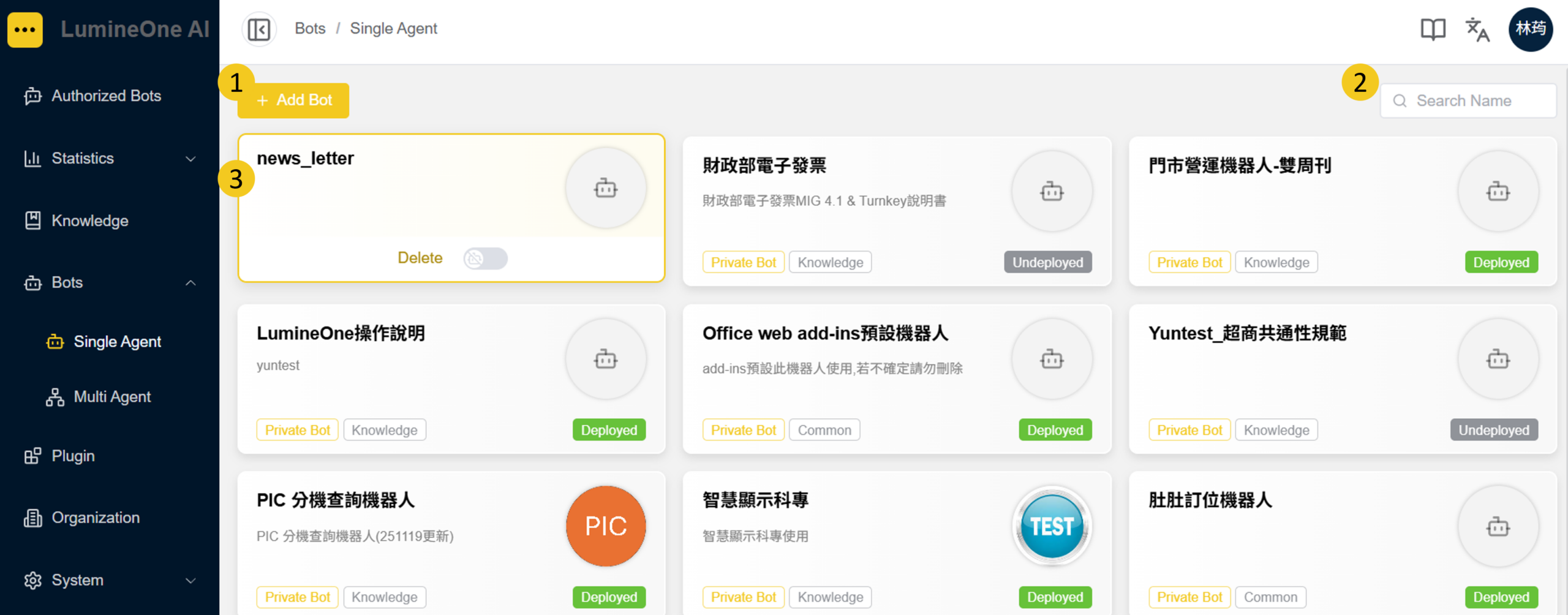
- 新增機器人:點擊後可執行新增機器人流程;
Add Bot: Click to execute the add robot process - 搜尋:針對機器人名稱進行關鍵字搜尋;
Search Bar: Keyword search for Bot names. - 機器人列表:點擊已存在的機器人區塊,可編輯該機器人;點擊『刪除』按鈕,可刪除該機器人。
Bot List: Click an existing bot card to edit the bot. Click the “Delete” button to remove the bot.
A-2. 建立機器人|Creating A Bot
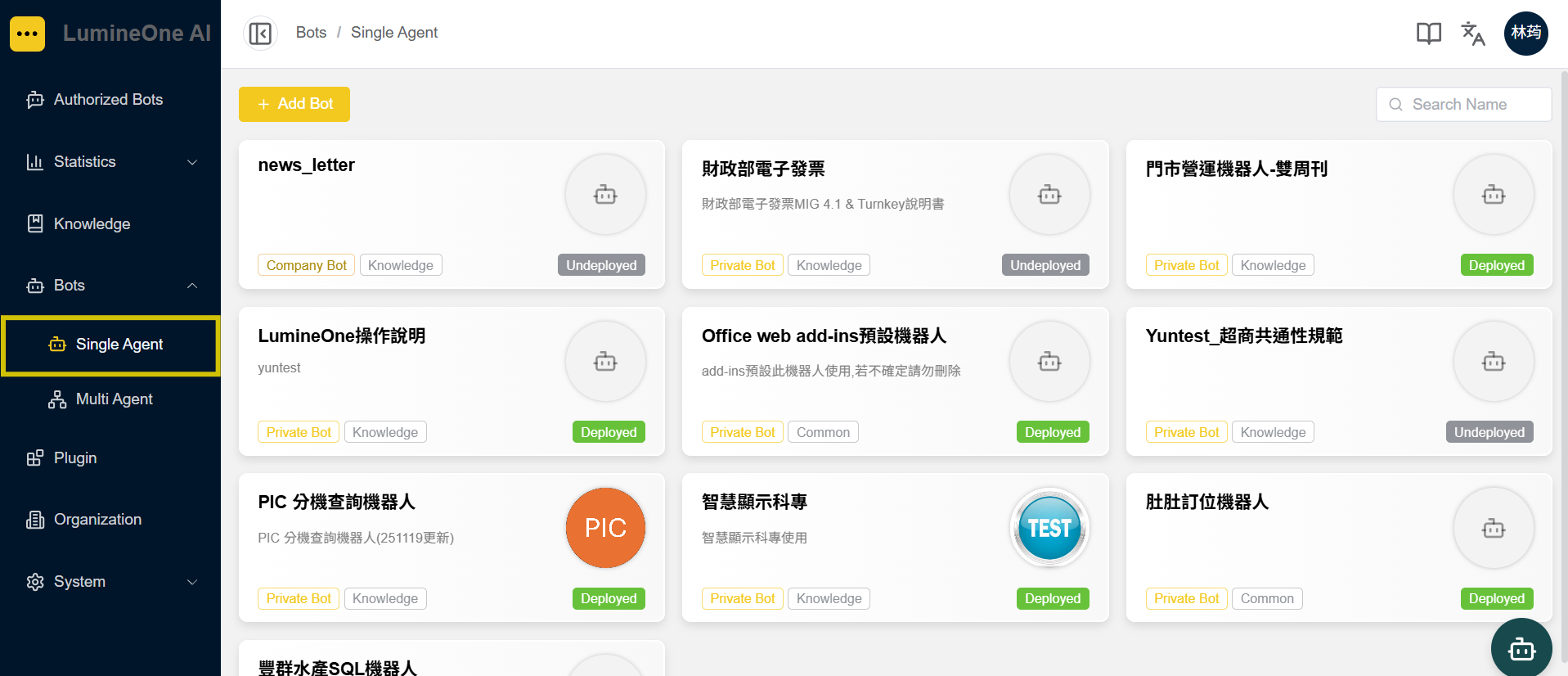
1. 於左側展開『機器人管理』,再點擊單代理;
In the left sidebar, expand “Bots” and click “Single Agent.”
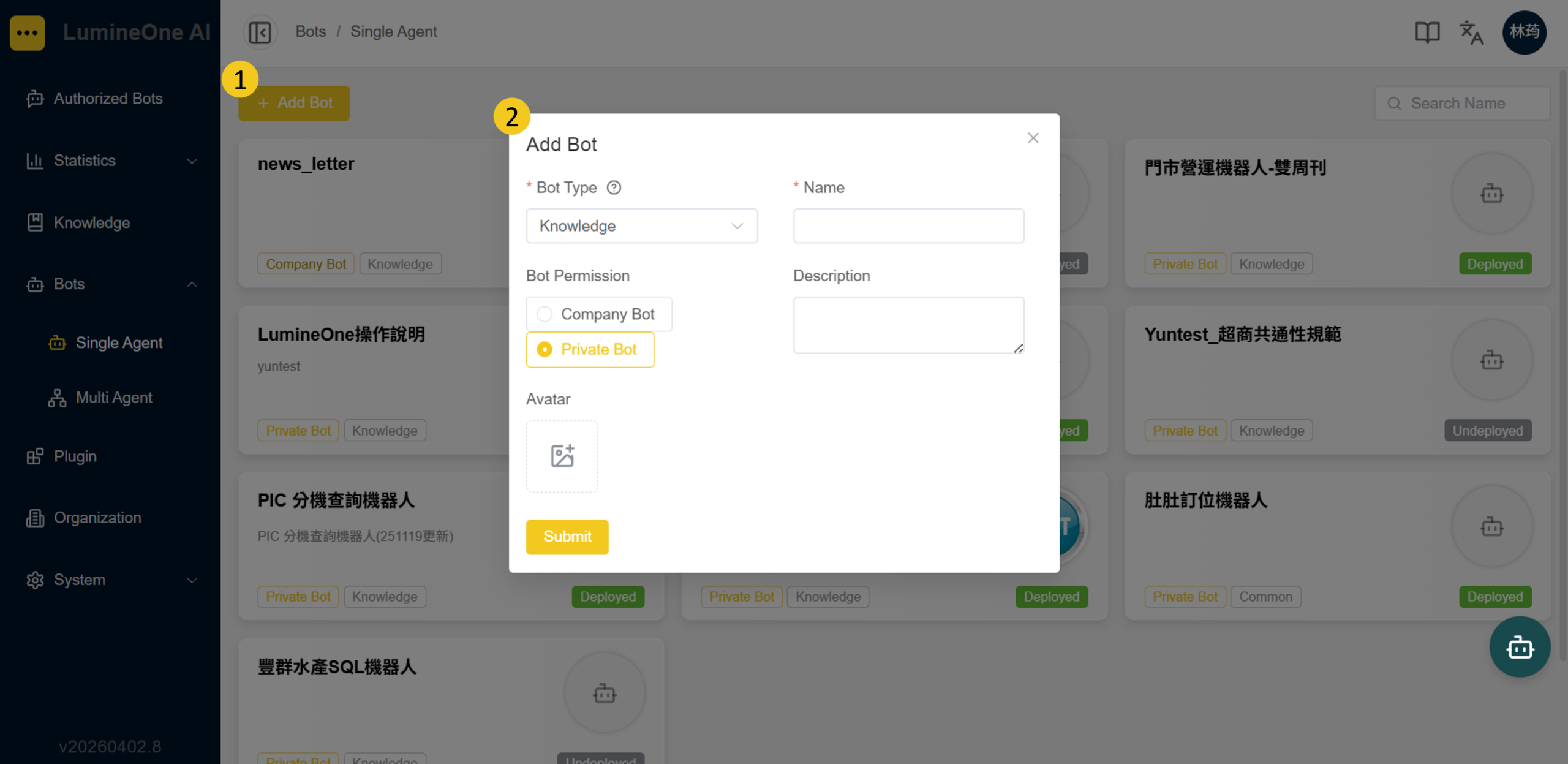
2. 點選①『新增機器人』按鈕,開啟②新增機器人區塊;
Click the “Add Bot” button (Reference 1).
3. 於②新增機器人區塊,填寫機器人類型、圖示、名稱、描述後,點擊『送出』按鈕,完成機器人建立。
Select the “Bot Type”, upload the “Avatar” image, enter the “Name” and “Description”, and select the “Bot Permission”, then click the “Submit” button on the subsequent pop-up modal (Reference 2).
(註1)針對【機器人類型】,若需關聯知識庫,請選擇「知識庫類型」,而非一般類型。
Note 1: Bot Type: If the Bot will learn from knowledge files, please select “Knowledge”. If not, please select “Common”.
(註2)機器人權限可依使用情境選擇:
私人機器人: 由建立者控管權限,可自行決定共同編輯者。適用於個人助理、學習或測試等情境。
公司機器人: 開放所有成員進行設定編輯,提供組織共同使用。常用於客服、內部支援及流程自動化等應用。
Note 2: Bot permissions can be configured based on different usage scenarios:
Private Bot: Permissions are managed by the creator, who can designate co-editors. Suitable for personal assistants, learning, or testing purposes.
Company Bot: Open to all members for configuration and editing, and designed for organization-wide use. Commonly used for customer service, internal support, and workflow automation.
A-3. 設定機器人|Setting A Bot
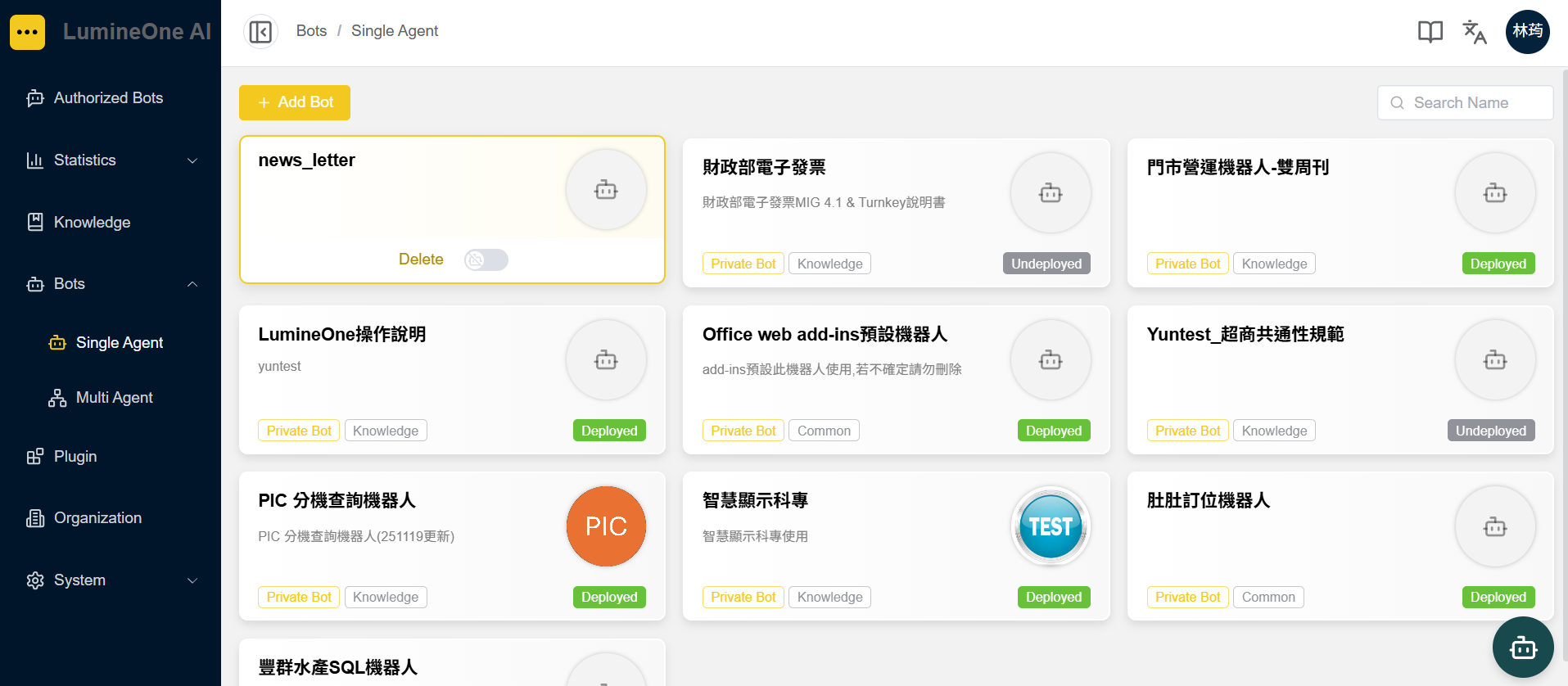
滑鼠移到已建立的機器人,『點擊』進入機器人設定頁面。
Move your mouse over the created bot, then click to open the bot settings page.
頁籤:規則 | Sheet: Rule
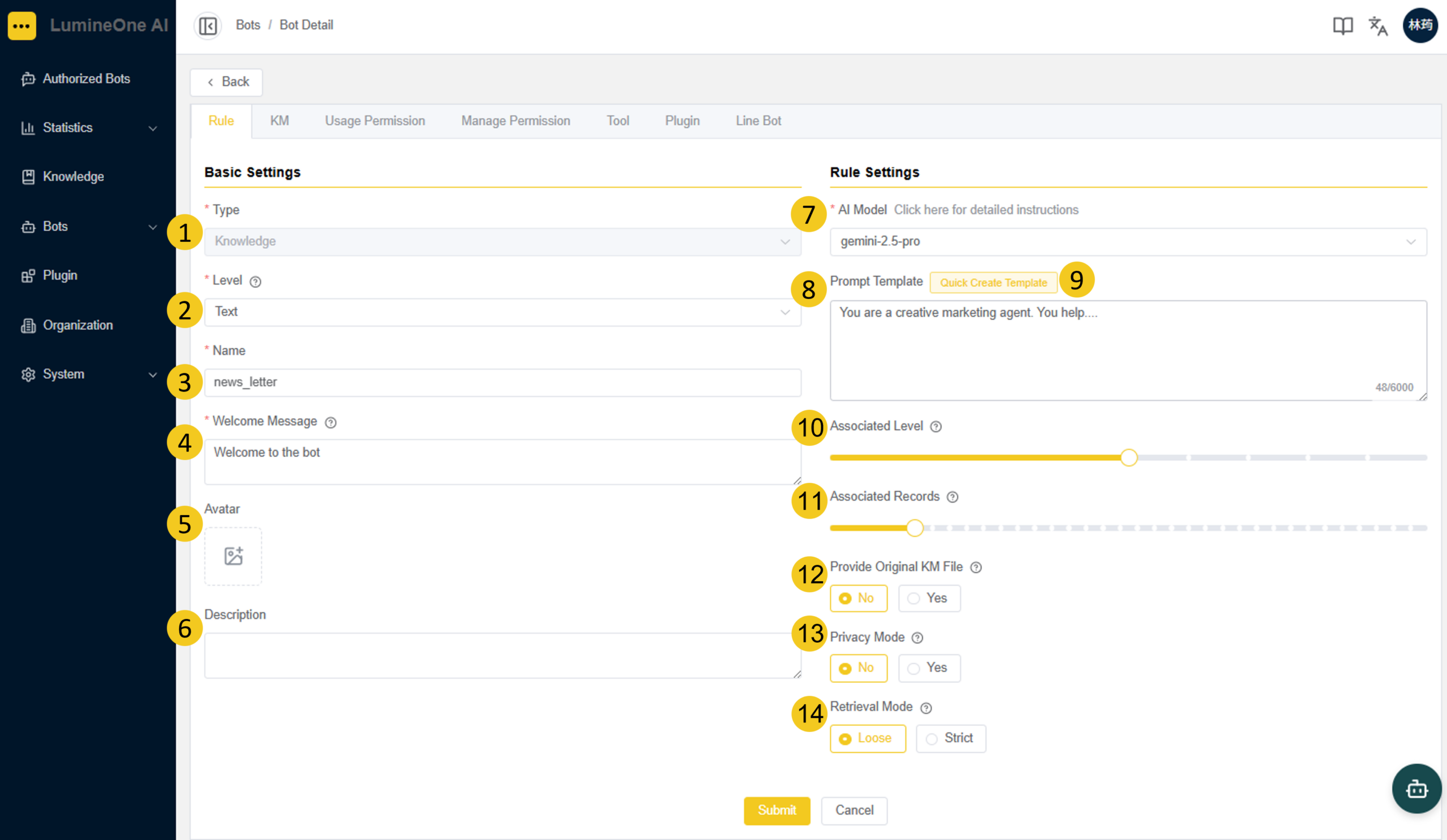
① 類型 / Type:顯示機器人屬於一般或知識類型,此為不可修改欄位
This read-only field indicates whether the Bot is Knowledge or Common.
② 等級 / Level:機器人所載入的功能等級,決定文字、語音以及 3D 人物的啟用狀態。(註):此功能會因訂閱等級而有所差異。
This field allows users to select the functionality and interface of the bot chat room, including the use of text, voice, and/or 3D avatar. Please note that this feature varies depending on the subscription plan.
③ 名稱 / Name:機器人顯示於畫面的名稱
This field allows users to enter the name of the Bot.
④ 歡迎語 / Welcome Message:對話開啓時,機器人主動送出的歡迎語
This field allows users to enter the welcome messages sent by the Bot when a cat room is started.
⑤ 頭像 / Avatar:機器人顯示的圖標樣式
This field allows users to upload an icon representing a particular Bot.
⑥ 描述 / Description:機器人的描述,顯示於機器人使用的提示資訊
This field allows users to enter the description of the Bot.
⑦ AI 模型 / AI Model:機器人綁定的 LLM 語言模型
This field allows users to select the Large Language Model linked to the Bot. (The option “Gemini” is recommended.)
⑧ 提示模板 / Prompt Template:為機器人設定 對話風格、背景資訊及回應方式 等,以影響它與使用者互動的方式。
This field allows users to set the conversation style, background information, and response approach for the robot to influence how it interacts with users.
⑨ 快速建立範本 / Quick Create Template:是用來幫助你更快速、準確地與 AI 溝通的結構化指令格式,送出後會自動套用到提示詞欄位
It is a structured instruction format that helps you communicate with AI more quickly and accurately. Once submitted, it will be automatically applied to the prompt field.
⑩ 聯想等級 / Associated Level:為機器人調整回答的 創意程度,影響它產生回應的方式。
高度聯想,會產生更多元、富有創意的回應,適合用於腦力激盪、內容創作等場景;
低度聯想,將更專注於提供直接、明確的答案,避免過度發散,適合處理需要準確資訊的問題。
This setting adjusts the level of creativity in the robot’s responses, influencing how it generates answers.
With the high level, the robot will generate more diverse and creative responses, making it suitable for brainstorming and content creation.
With the low level, the robot will focus on providing direct and accurate answers, avoiding unnecessary elaboration. This is best for questions requiring clear and factual responses.
⑪ 關聯歷史 / Associated Records:機器人參考歷史對話的數量。
高度關聯:有上下文訊息的脈絡,但也會消耗更多使用量,適合應用於客服機器人在回答客戶的問題時,能夠更好地參考過去的問題和解答,提升整體的服務質量;
低度關聯:較少參考過去的對話內容,每個問題的回答會更獨立、更直觀,適合應用於處理簡單、一次性的問題。
This field allows users to set the amount of conversation history that the Bot refers to.
With the high level, the more contextual information is considered when the Bot answers questions. However, more bandwidth will be used. This situation is suitable for customer service, as it involves a continuous conversation.
With the low level, the less contextual information is considered. That is to say, each answer provided by the Bot will be more independent, which is suitable for a simple and one-off conversation.
⑫ 提供原始 KM 檔案 / Provide Original KM File:此設定可提供KM參考來源。
This setting provides reference sources for KM. Currently.
⑬ 隱私模式 / Privacy Mode:系統將在儲存系統日誌前加密並隱藏特定個人資料欄位,以加強隱私保護
The system will encrypt and hide specific personal data fields before storing system logs, thereby enhancing privacy protection.
⑭ 參照模式 / Retrieval Mode:僅適用於知識型機器人。啟用嚴格模式時,機器人僅會根據知識庫內容提供回應。
Only available for knowledge bots. In strict mode, the bot will only answer based on knowledge base content.
頁籤:知識庫 | Sheet: KM
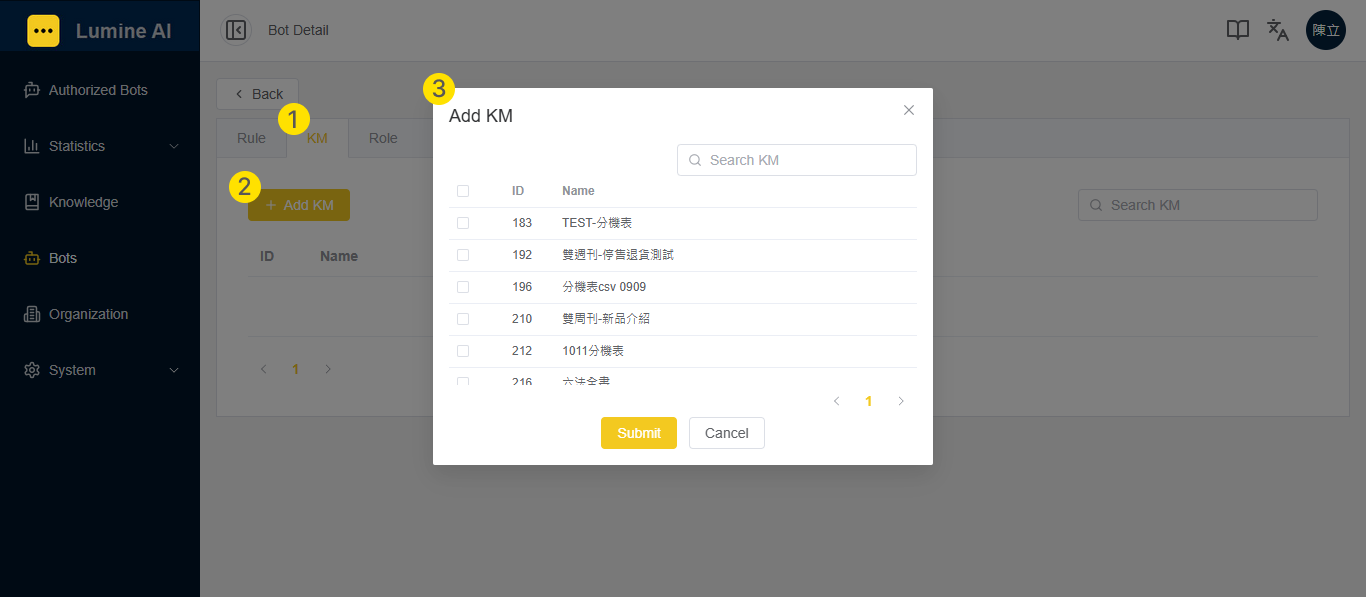
1. 進入知識庫頁籤,點擊『新增知識庫』按鈕;
In the KM sheet (Reference 1), click the “Add KM” button (Reference 2).
2. 於③新增知識庫區塊,選取欲綁定之知識庫後,點擊『送出』按鈕。
Select one or more Knowledges to be bound, and then click the “Submit” button (Reference 3).
(註1)若無此頁籤,請先切換至規則頁籤,確認類型是否為知識型。
If there is no “KM” sheet, please check in the “Rule” sheet if the Bot Type is Knowledge.
(註2)若沒有可綁定之知識庫,請先完成知識庫建立。
If there is no Knowledge to be bound in Reference 3, please create a new Knowledge.
頁籤:使用權限 | Sheet: Usage Permission
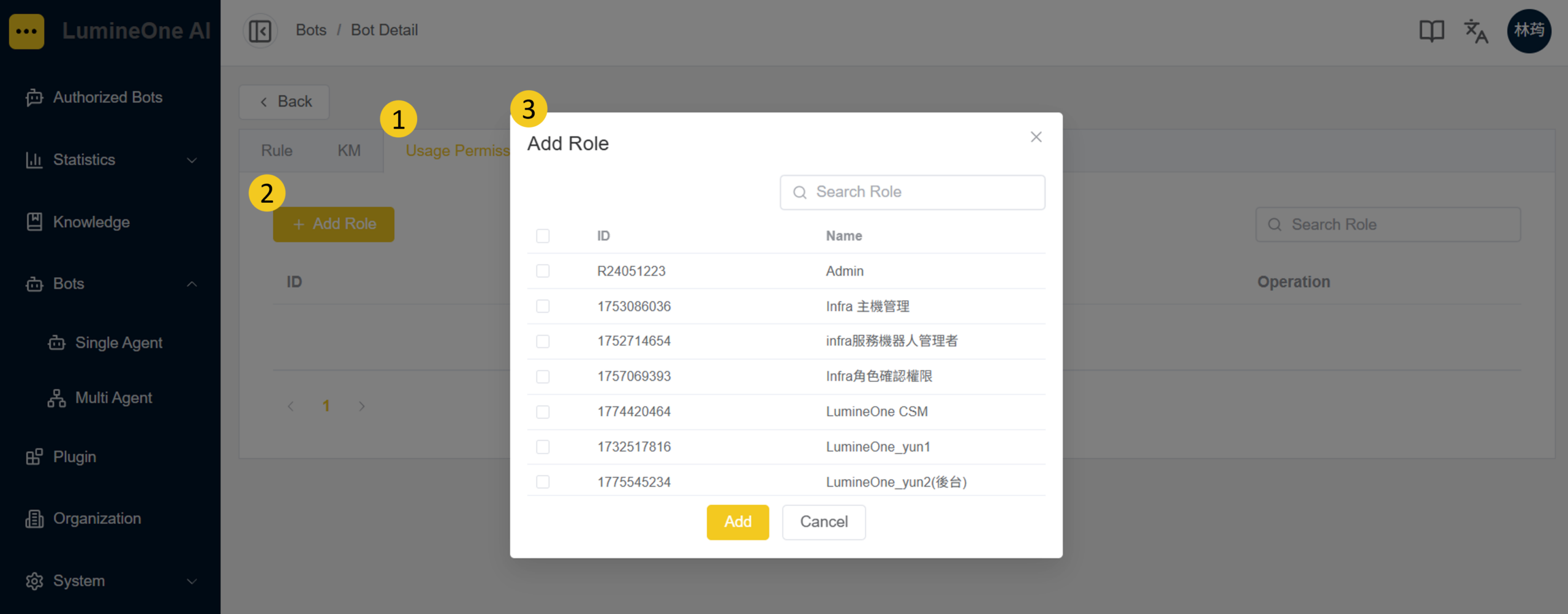
加入使用權限的角色,其成員可使用該機器人,並開啟對話進行互動。
Members assigned to roles with user permission can use the robot and initiate conversations to interact with it.
1. 進入使用權限頁籤,點擊②『新增角色』按鈕;
In the “Usage Permission” sheet, click the “Add Role” button (Reference 2).
2. 於③新增角色區塊,選取可用此機器人的角色,點擊『新增』按鈕。
Select one or more roles who are allowed to use this Bot, and then click the “Add” button (Reference 3).
頁籤:管理權限 | Sheet: Manage Permission
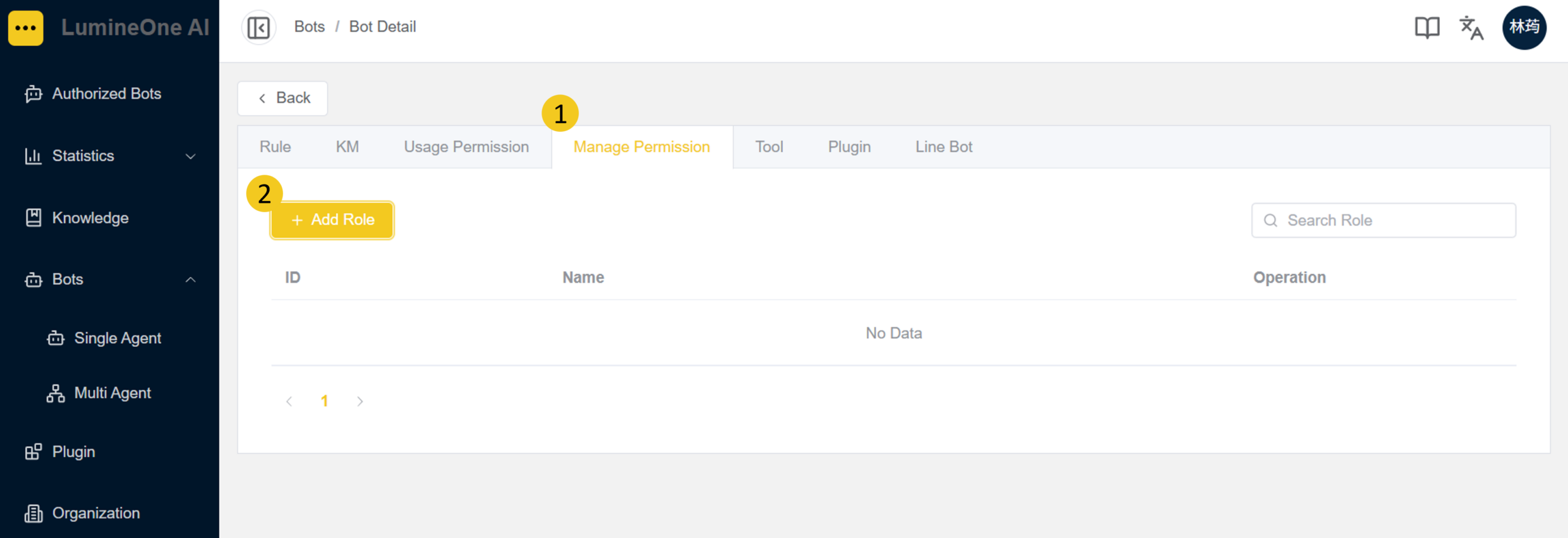
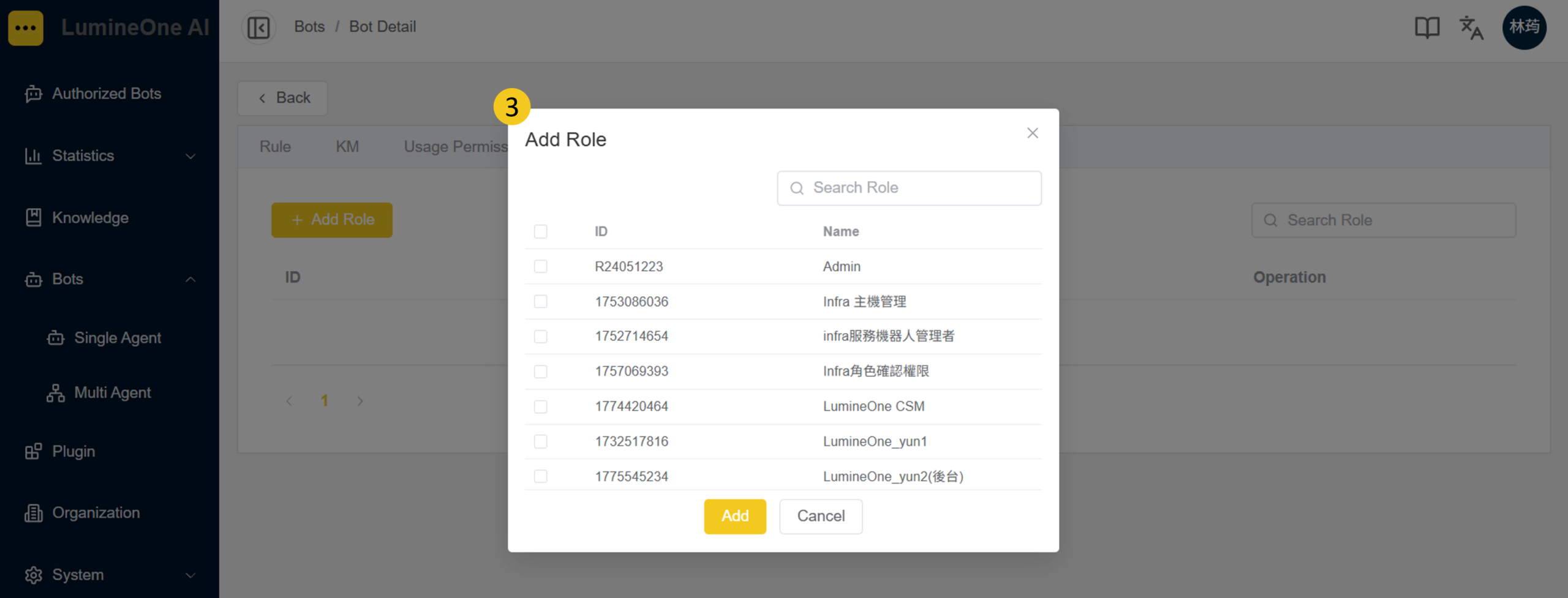
加入管理權限的角色,其成員可編輯機器人設定,進行調整與維護。
Members assigned to roles with manage permission can edit the bot settings, including making adjustments and maintenance.
1. 進入管理權限頁籤,點擊②『新增角色』按鈕;
In the “Manage Permission” sheet, click the “Add Role” button (Reference 2).
2. 於③新增角色區塊,選取可用此機器人的角色,點擊『新增』按鈕。
Select one or more roles who are allowed to use this Bot, and then click the “Add” button (Reference 3).
(註1)此頁籤僅適用於私人機器人,且僅限該機器人的建立者進行控管。
Note: This tab is only applicable to private bots, and only the creator of the bot is authorized to manage it.
頁籤:工具 | Sheet: Tool
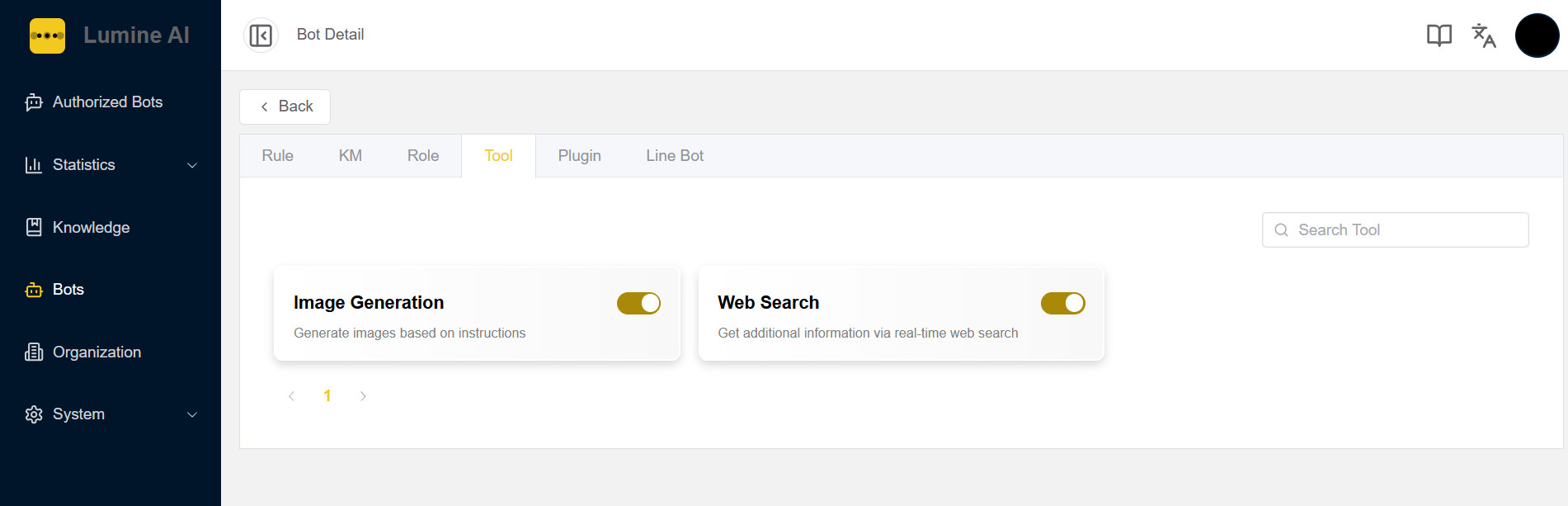
可依據使用情境需求,將工具進行開啟:
1. 圖片生成:輸入文字即可快速產生多風格圖片,支援預覽、放大、下載。
Image Generation: Instantly generate multi-style images from text input. Supports preview, zoom, and download.
2. Web 搜尋:即時查詢網路最新資訊(如天氣、股價),補足 AI 回答的時效性與廣度。
Web Search: Retrieve up-to-date web information (e.g., weather, stock prices) in real time to enhance the timeliness and breadth of AI responses.
頁籤:插件 | Sheet: Plugin
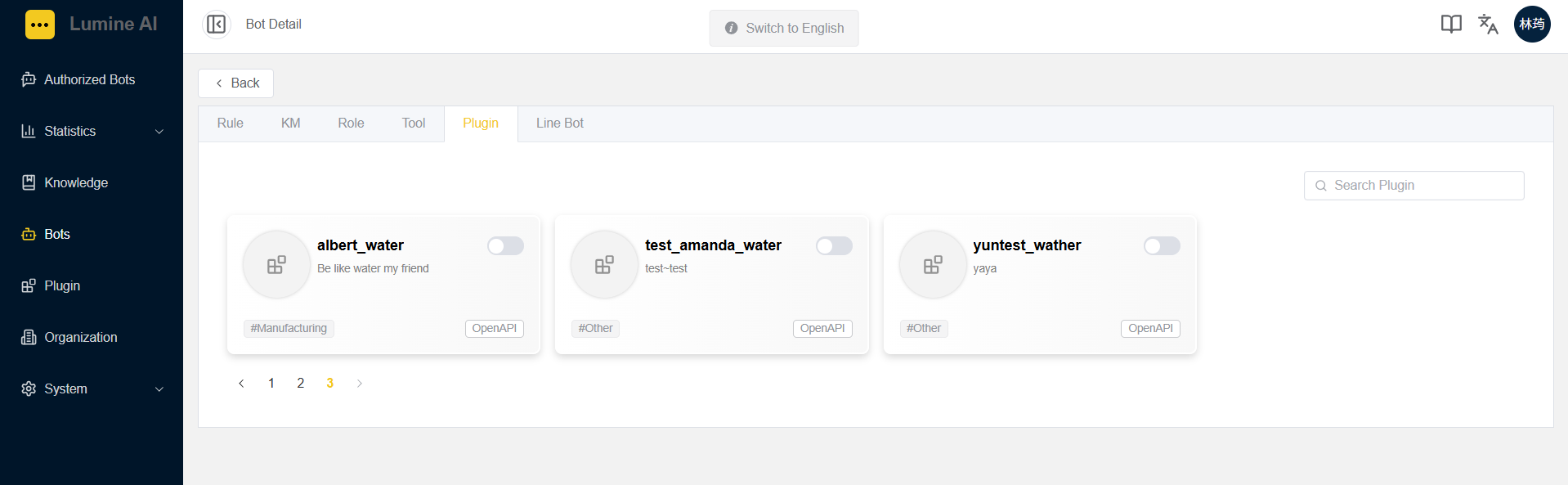
1. 進入插件頁籤,啟用想要綁定的插件。
In the "Plugin" sheet to enable the plugin you want to bind.
詳細的插件設定,請參考: 插件管理 Plugin
For detailed plugin settings, please refer to: 插件管理 Plugin
頁籤:Line Bot | Sheet: Line Bot
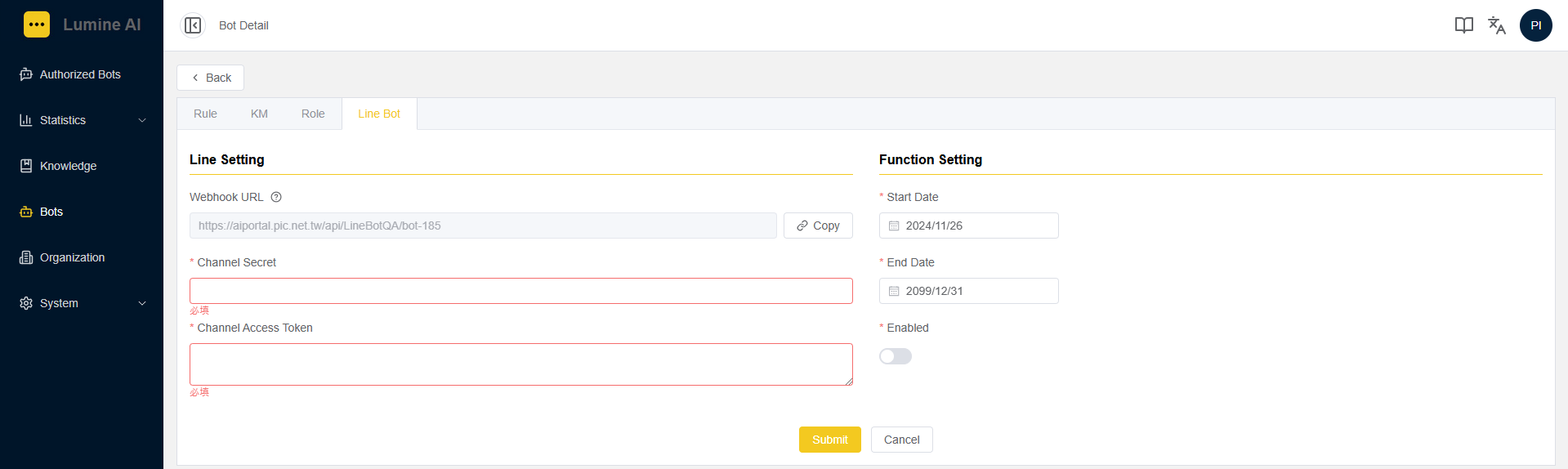
1. 進入Line Bot頁籤,並填入您 Line OA 的 Secret 與 Token;
In the “Line Bot” sheet, enter your “Line OA Secret” and “Token”.
2. 將「是否啓用(Enabled)」開啟後,點擊 『送出』按鈕。
Turn on the “Enabled” button, and click the “Submit” button.
(註)此功能會因訂閱等級而有所差異。
This feature varies depending on the subscription plan.
請參考:設定Line機器人;
Please refer to the Line Bot setting
A-4. 啟用機器人|Deploying A Bot
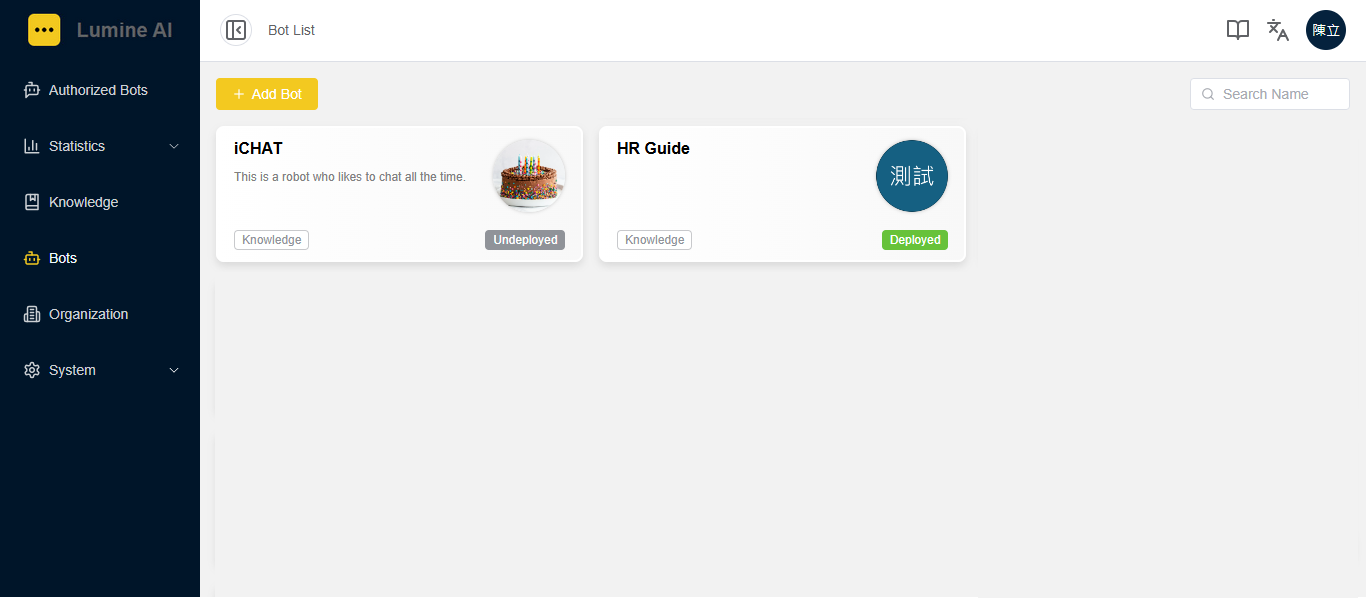
回到機器人列表後,可檢視所有已啟用與未啟用的機器人。
Back to the Bot List to view all the undeployed and deployed Bots.
未啟用(Undeployed)
啟用(Deployed)
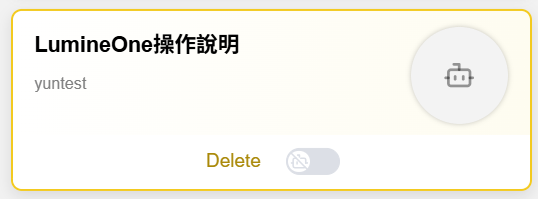
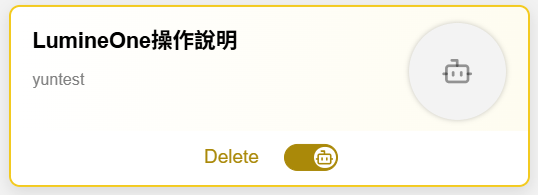
若欲啟用機器人,將滑鼠移至該機器人,將右側按鈕開起
To deploy the Bot, move the mouse over the block and click on the switch icon.
若欲關閉機器人,將滑鼠移至該機器人,將右側按鈕關閉
To undeploy the Bot, move the mouse over the block and click off the switch icon
B. 使用授權機器人|Authorized Bots
B-1. 開啟機器人對話|Start Chatting
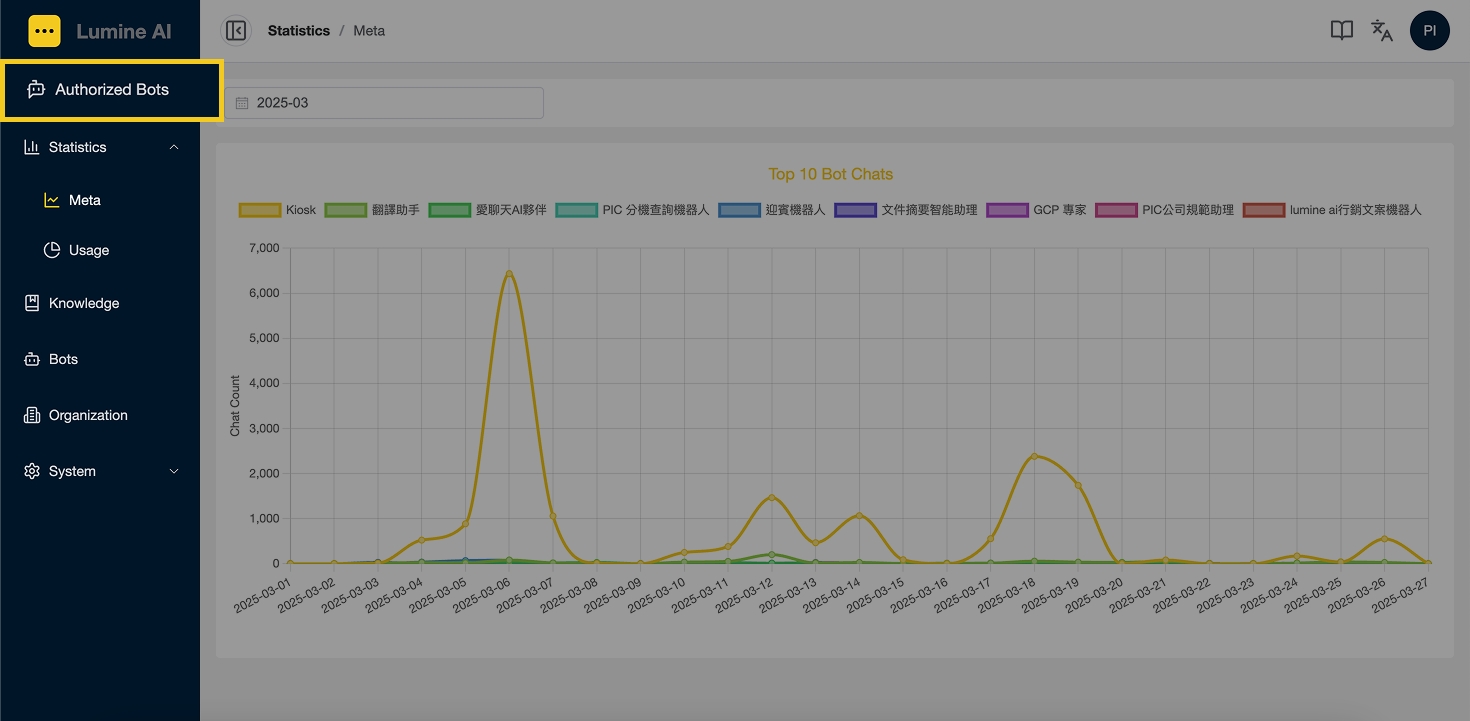
1. 於左側點選『授權機器人』;
Click the “Authorized Bots” link in the left side navigation bar to start conversations with bots.
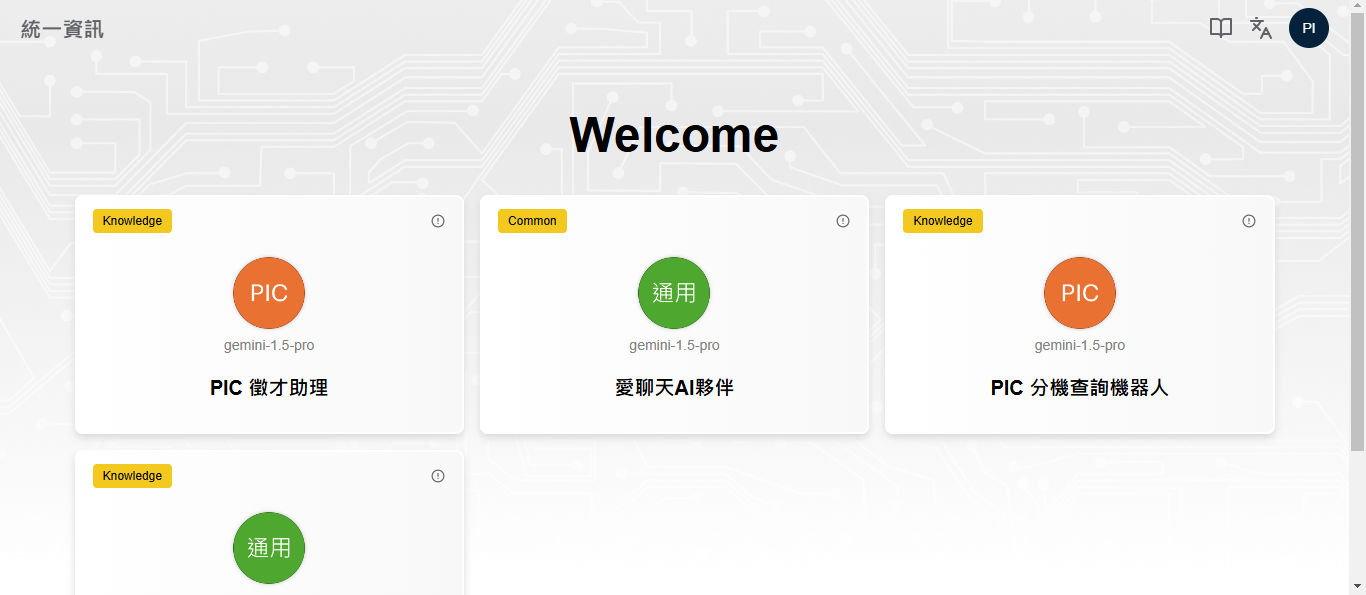
2. 進入頁面後,點選想使用的機器人,系統便會開啓對話視窗;
Choose a bot that you want to start a conversation with, and a new tab will open automatically.
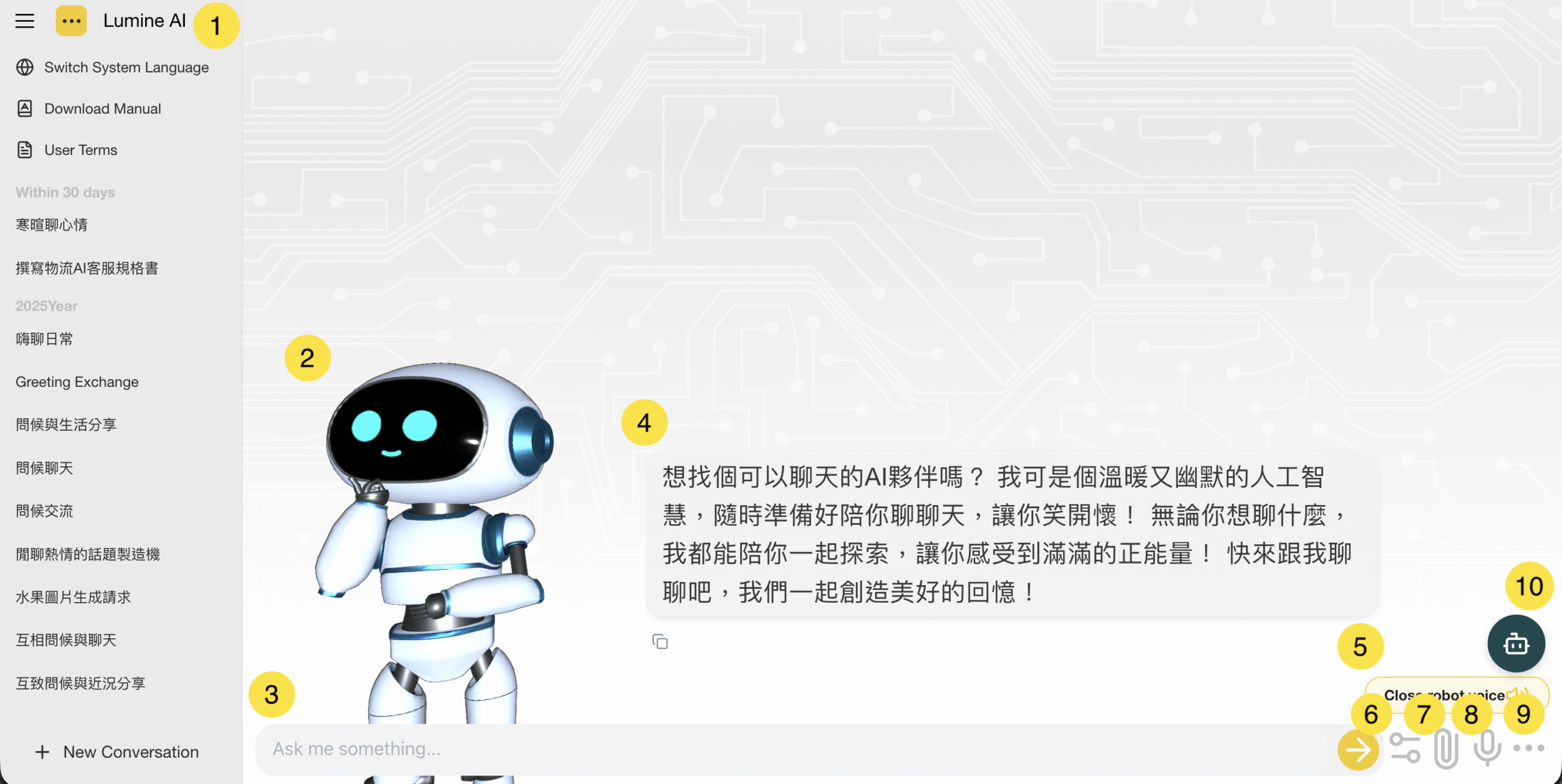
① 側邊欄 / Side Menu:提供各項系統功能,點擊左上角的漢堡icon可收合此選單。
It provides various system functions. Click the hamburger icon in the top left corner to collapse the menu.
- 切換系統語言 / Switch Sysyem Language:切換此頁面的系統語系,目前支援英文、中文、泰文、越南文。
A button which provides users to switch system language, currently including English, Chinese, Thai, and Vietnamese. - 下載使用手冊 / Download Manual:可下載此系統的使用說明書
A button which provides users to download user guidebook for this system. - 使用者條款與個資聲明 / User Terms:可檢視LumineOne AI使用條款、個人資料搜集告知及聲明
A button which provides users to view "LumineOne AI Terms of Service" and "Notification and Declaration of Personal Data Collection". - 對話歷史紀錄/ Chat History:提供聊天對話紀錄
Provide chat history.
② 虛擬人物 / Avatar:生動可愛的虛擬3D人物
Lifelike Virtual 3D Character
③ 文字輸入框 / Text Input:可輸入想提問的問題
This box provides users to input text messages
④ 對話紀錄 / Chat Record:與機器人的對話歷史紀錄,且點擊「複製」圖示,可複製該對話內容。
This button provides users to see the conversation histories with the bot. By clicking the "copy" icon, users can copy the the conversation.
⑤ 機器人語音/ Robot voice:可以開啟/關閉機器人聲音
You can turn the bot’s voice on or off.
⑥ 工具 / Tools:目前僅支援「深入研究」功能。開啟後可獲得更精確的回覆,但會增加 Token 消耗並延長 AI 的回應時間,請酌情使用。
Currently, only the “Deep Research” feature is supported. Enabling it provides more accurate responses but will consume more tokens and increase the AI’s response time. Please use it with discretion.
⑦ 上傳按鈕 / Upload:提供「裝置上傳」與「網址上傳」兩種模式,可搭配提問讓 AI 分析檔案內容。
Device Upload and URL Upload, which can be used together with your questions to let the AI analyze the file content.
-
裝置上傳: 格式支援txt、md、pdf、pptx、ppt、docx、doc、xlsx、xls、csv、jpg、jpeg、png等格式。
Device Upload: Supports formats such as txt, md, pdf, pptx, ppt, docx, doc, xlsx, xls, csv, jpg, jpeg, and png. -
網址上傳: 提供URL上傳,我們會將它轉成檔案格式。
URL Upload: Allows uploading via URL; the system will convert it into a file format.
⑧ 語音輸入按鈕 / Speech Input:可透過麥克風使用語音跟機器人對話。
This box provides users to input speech messages.
⑨ 更多 / More:提供更多對話相關功能,包含切換對話語言、自訂機器人提示詞。
It provides more conversation functions, including "Switch Dialogue Language" and "Customized Robot Prompt"
- 切換對話語言 / Switch Dialogue Language:切換機器人回答的語言,目前支援英文、中文、泰文、越南文。
A button which provides users to switch languages that the bot is using, currently including English, Chinese, Thai, and Vietnamese. - 自訂機器人提示詞 / Customized Robot Prompt:可自訂 Prompt,系統會優先使用此功能設定之 Prompt
A button which provides users to custom default prompt which will be set as the first priority prompt.
⑩ 客服小精靈 / Customer Support Assistant:快速查系統操作或教學,也提供真人客服協助。
Quickly search for system operations or tutorials, and get assistance from live customer support.
B-2. 客服小精靈 / Customer Support Assistant
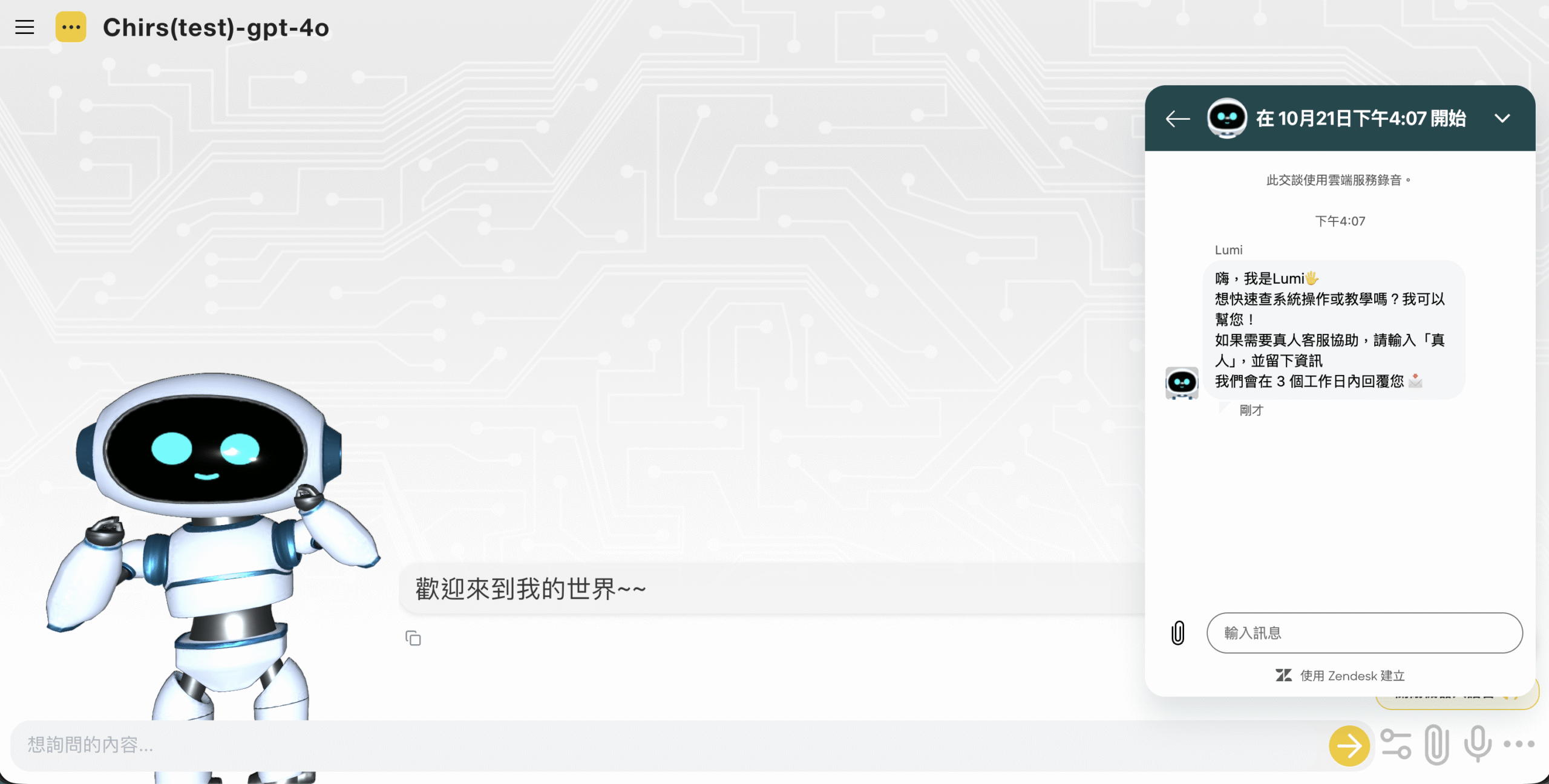
若您使用機器人時遇到異常,或有任何建議,請開啟右下角『客服小精靈』按鈕,開發團隊會協助您。
If you encounter any issues while using the bot or have suggestions, please click the “Customer Support Assistant” button at the bottom right corner—our development team will assist you.
操作說明:https://lumineai-doc.pic.net.tw/how-to-use-custom-service/
Instructions:https://lumineai-doc.pic.net.tw/how-to-use-custom-service/