
基本操作|General
更新日期:20250327
A. 登入|Login

透過網址(https://lumineai.pic.net.tw/cms/login)或掃描上方QR Code開啟 LumineOne AI。
Navigate to https://lumineai.pic.net.tw/cms/login or scan the QR Code above to launce LumineOne AI.
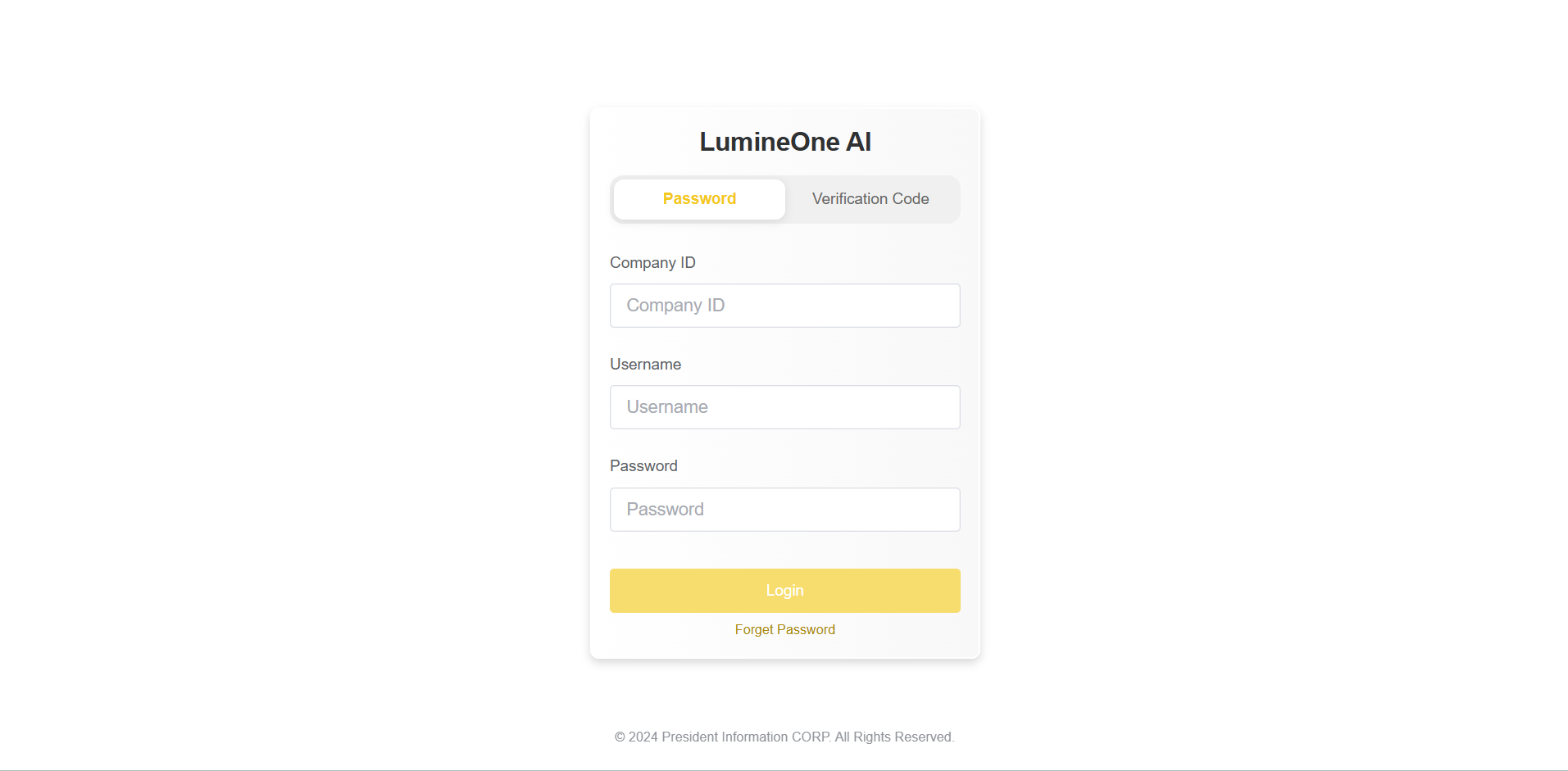
系統提供兩種登入方式,分別為「密碼登入」與「驗證碼登入」。
The system provides two login methods: password login and verification code login.
A-1. 密碼登入 | Password Login
請輸入 (a)公司統一編號、(b)帳號、(c)密碼,並點擊『登入』按鈕。
Fill out the login information, including (a)Company ID, (b)Username, (c)Password. After completing, click the “Login” button below.
A-2. 驗證碼登入 | Verification Code Login
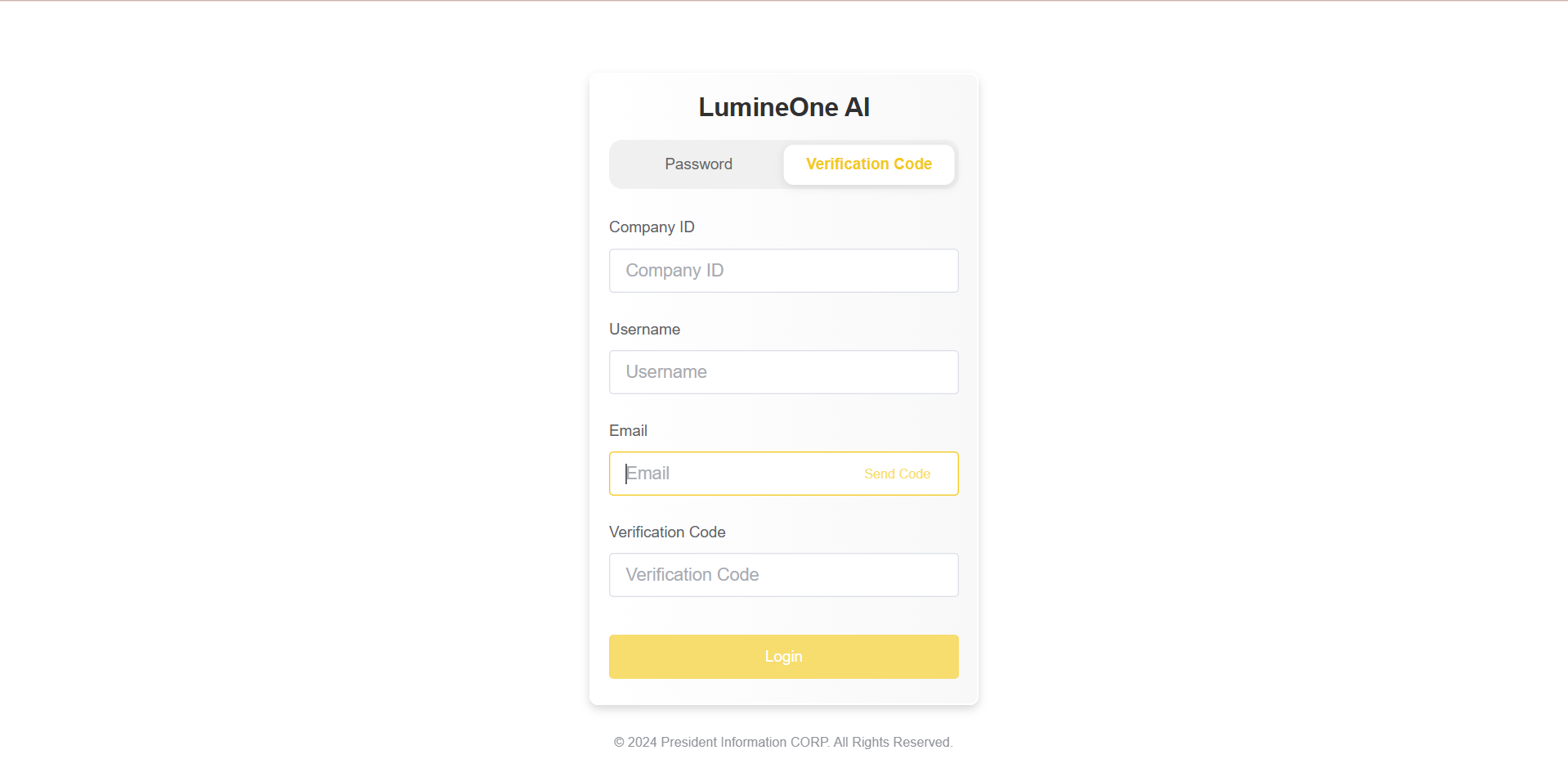
1. 請輸入 (a)公司統一編號、(b)帳號、(c)電子郵件,並點擊『傳送驗證碼』按鈕。
Fill out the login information, including (a)Company ID, (b)Username, (c)Email. After completing, click the “Send code” button .
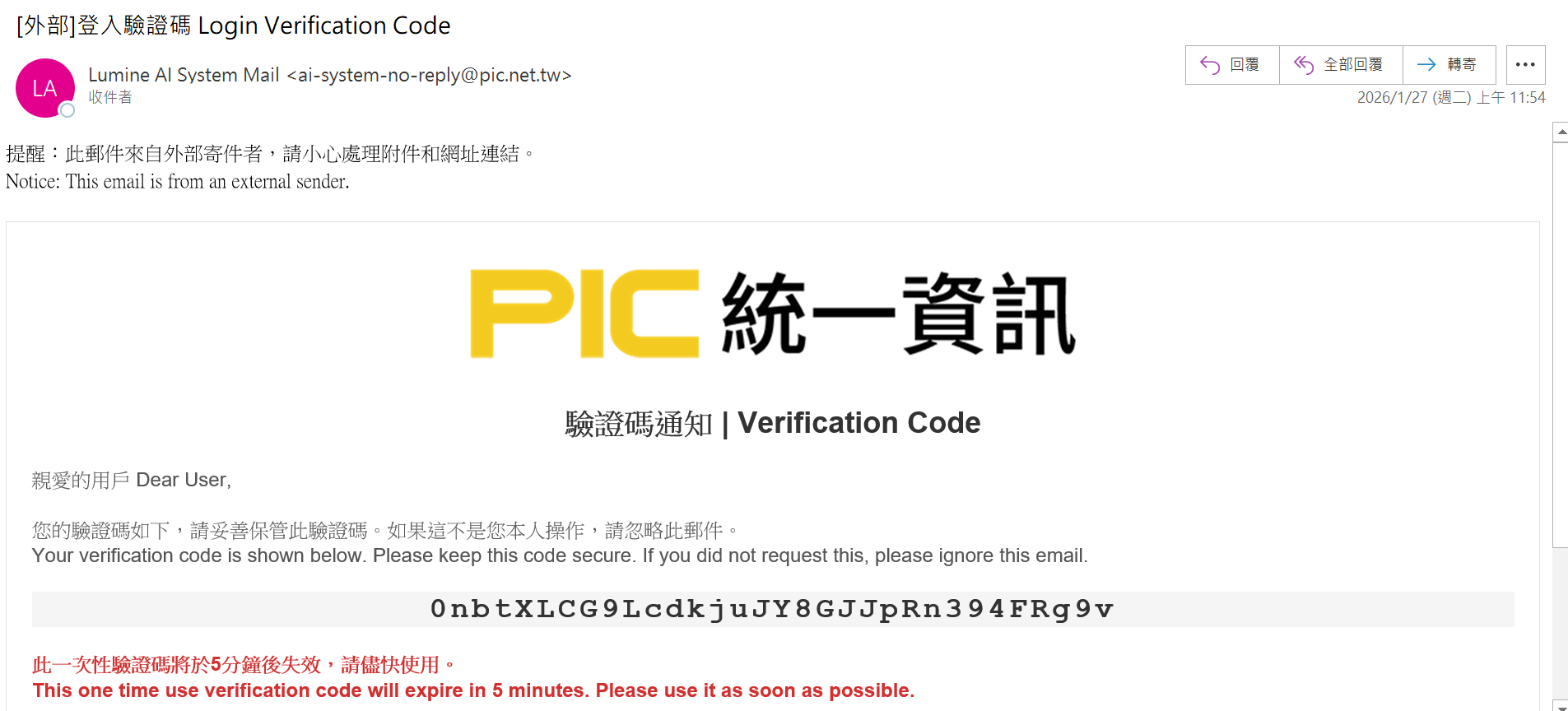
2.請至信箱查收驗證碼,填入後點擊下方的「登入」按鈕完成登入。
Please check your email for the verification code, enter it, and then click the “Login” button below to complete the login..
B. 變更密碼|Change Password
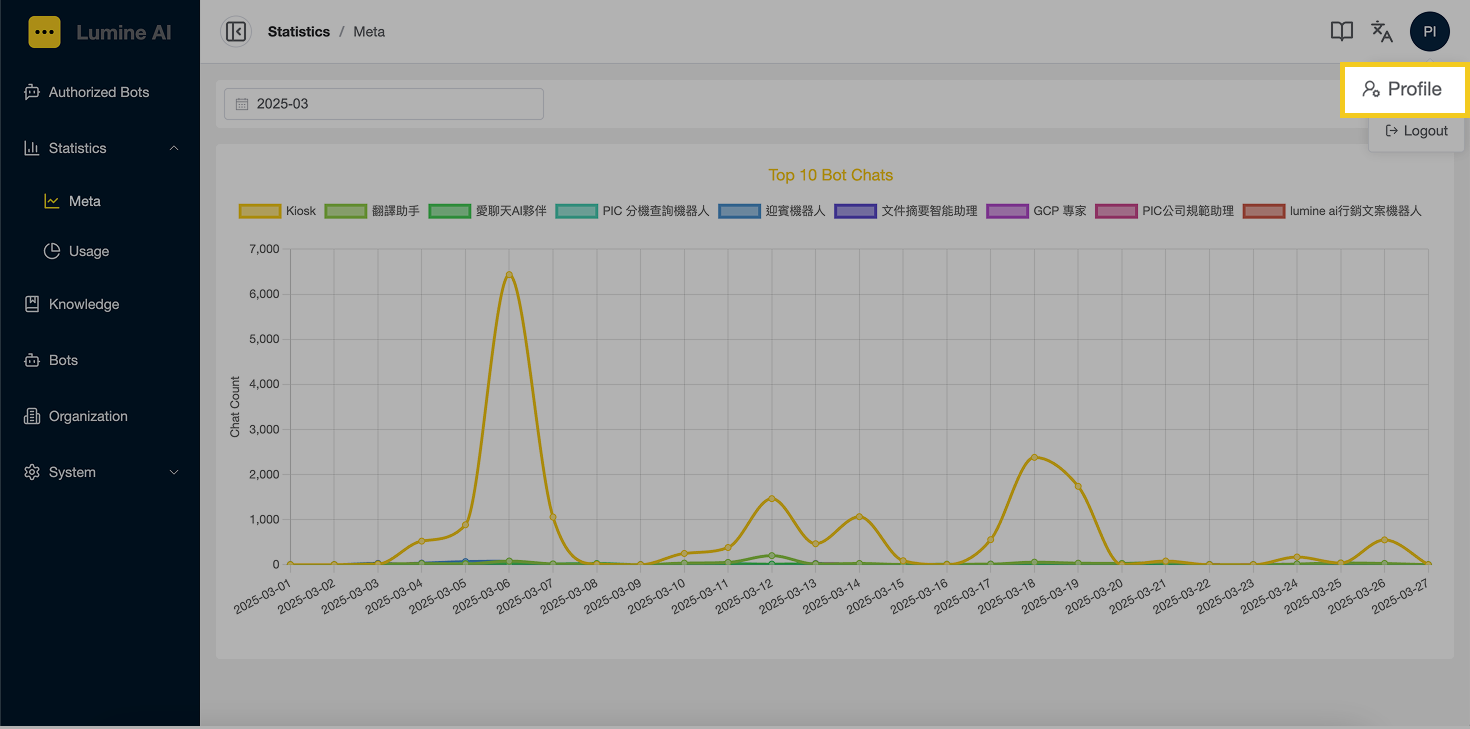
1. 點選畫面右上角姓名,展開選單後,點擊『編輯個人資料』按鈕;
Click the name icon in the upper right corner of the screen, and then click the “Profile” button.
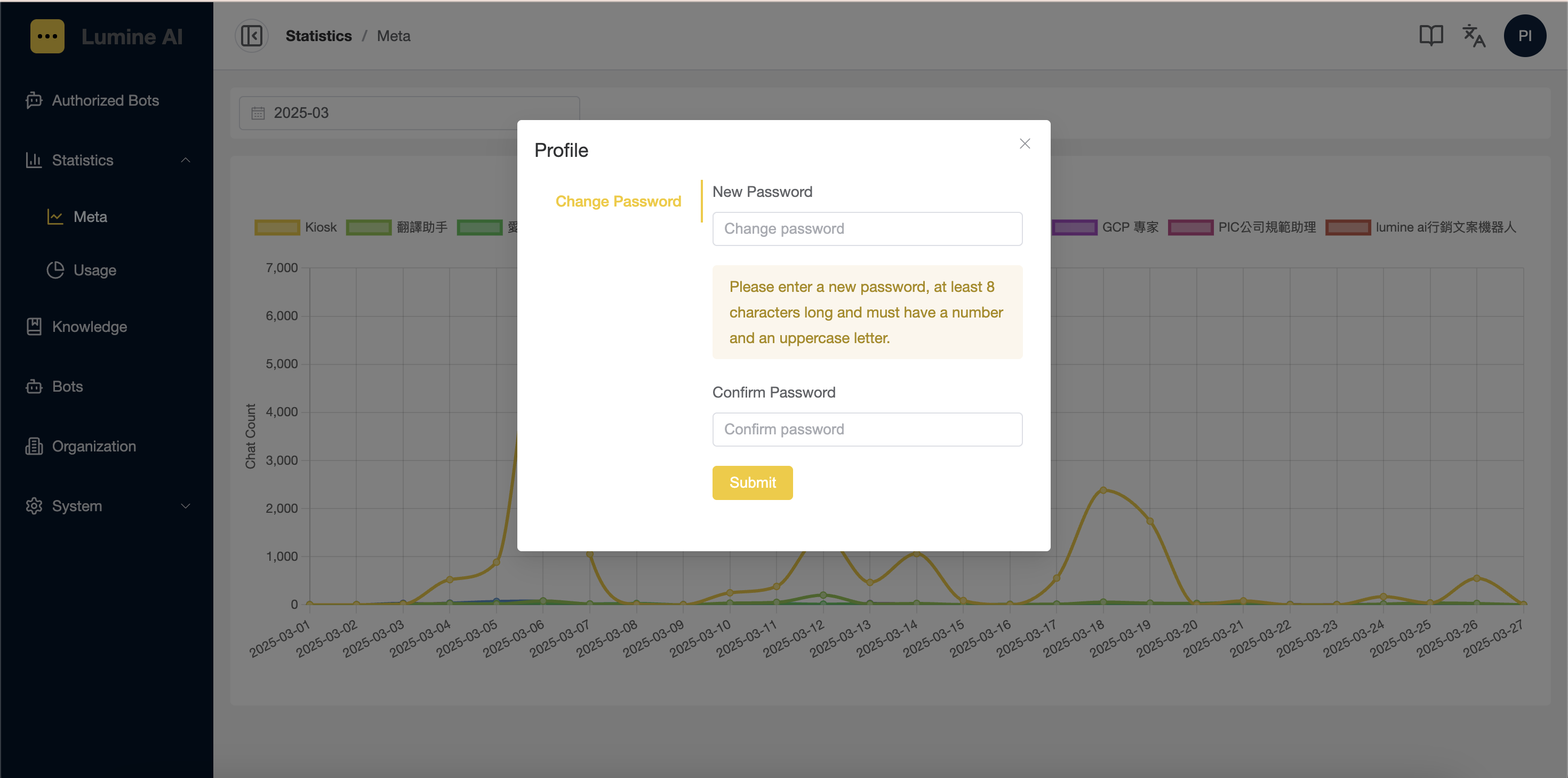
2. 請輸入 (a)新密碼、(b)再次輸入新密碼,且需符合密碼規則,點擊『送出』按鈕進行變更。
Enter the (a)New Password, and (b) Confirm Password. The New Password and the Confirm Password must match and meet complexity requirements. After completing, click the “Submit” button below.
C. 忘記密碼|Forget Password
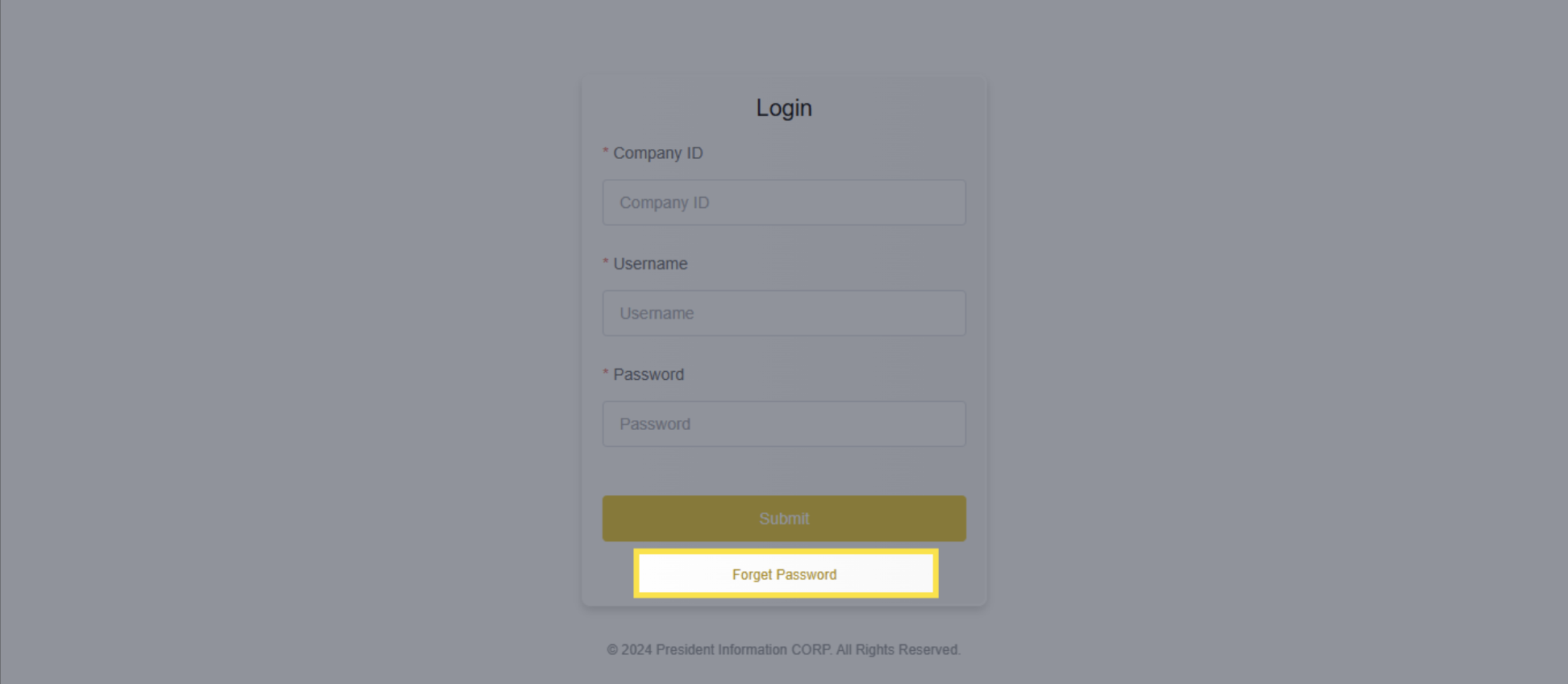
1. 於 LumineOne AI 登入畫面下方,點擊『忘記密碼』按鈕;
Click the "Forgot Password" link on the login page.
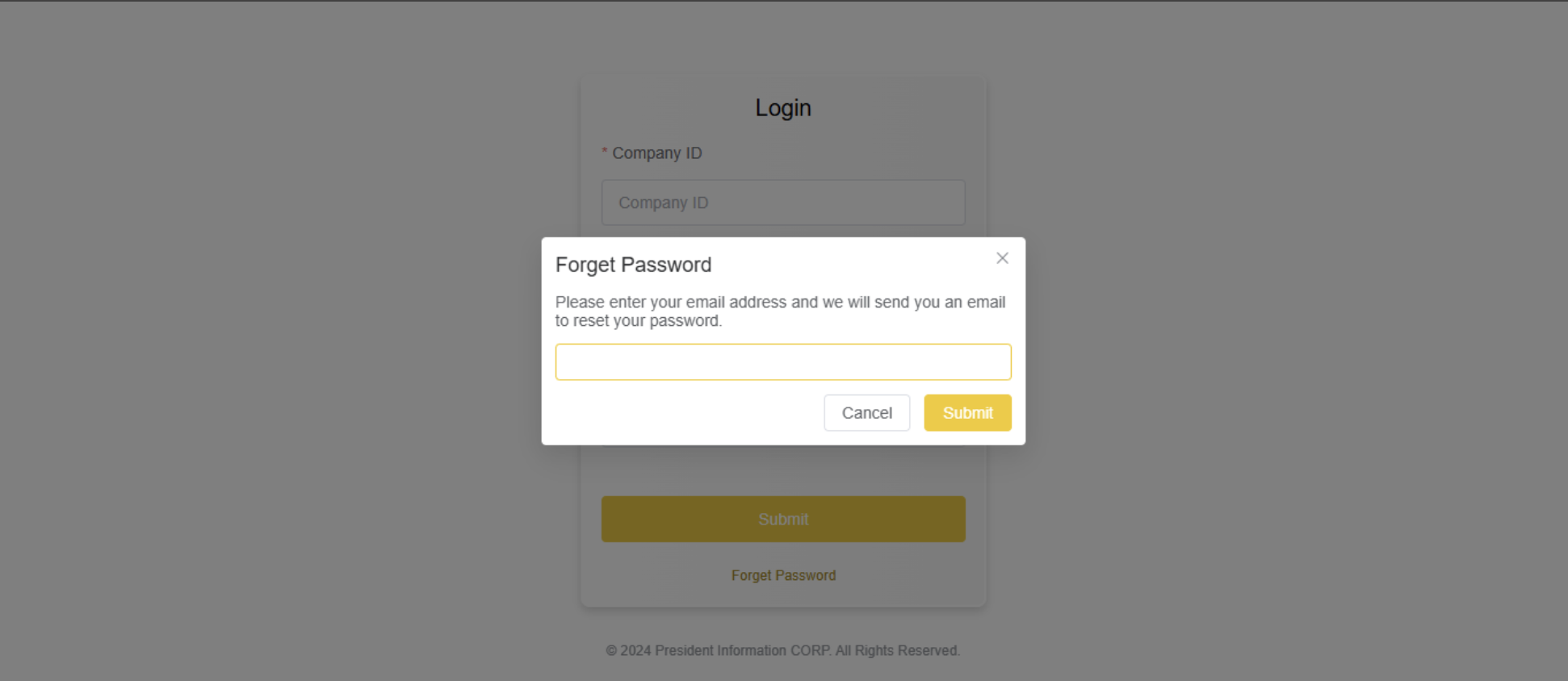
2. 輸入您的 Email 信箱,並點擊『送出』按鈕;
Enter your “Email address” and the click the “Submit” Button.
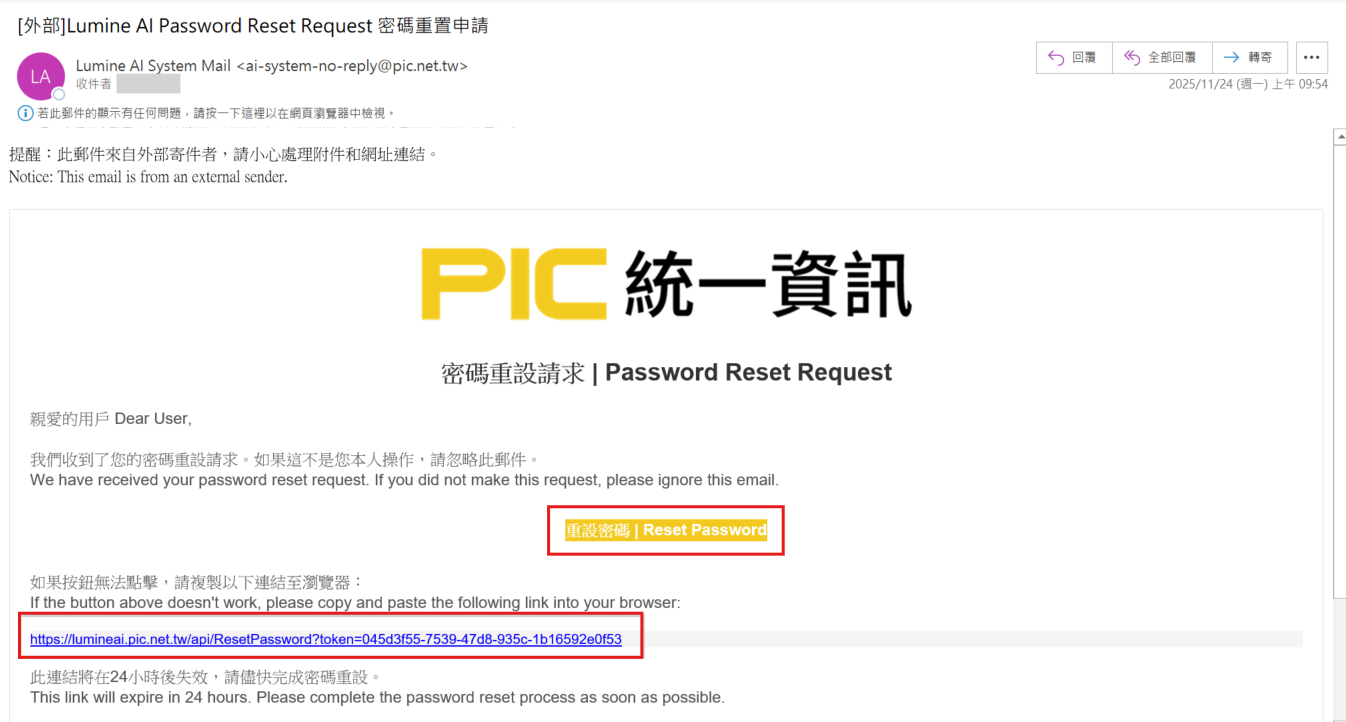
3. 至您的Email 信箱收取重製申請信件,並點擊信件內的『重設密碼』或認證連結;
Check your email inbox. The first email will include a certification link. Please click the ‘Reset Password’ button or the link to receive the second email.
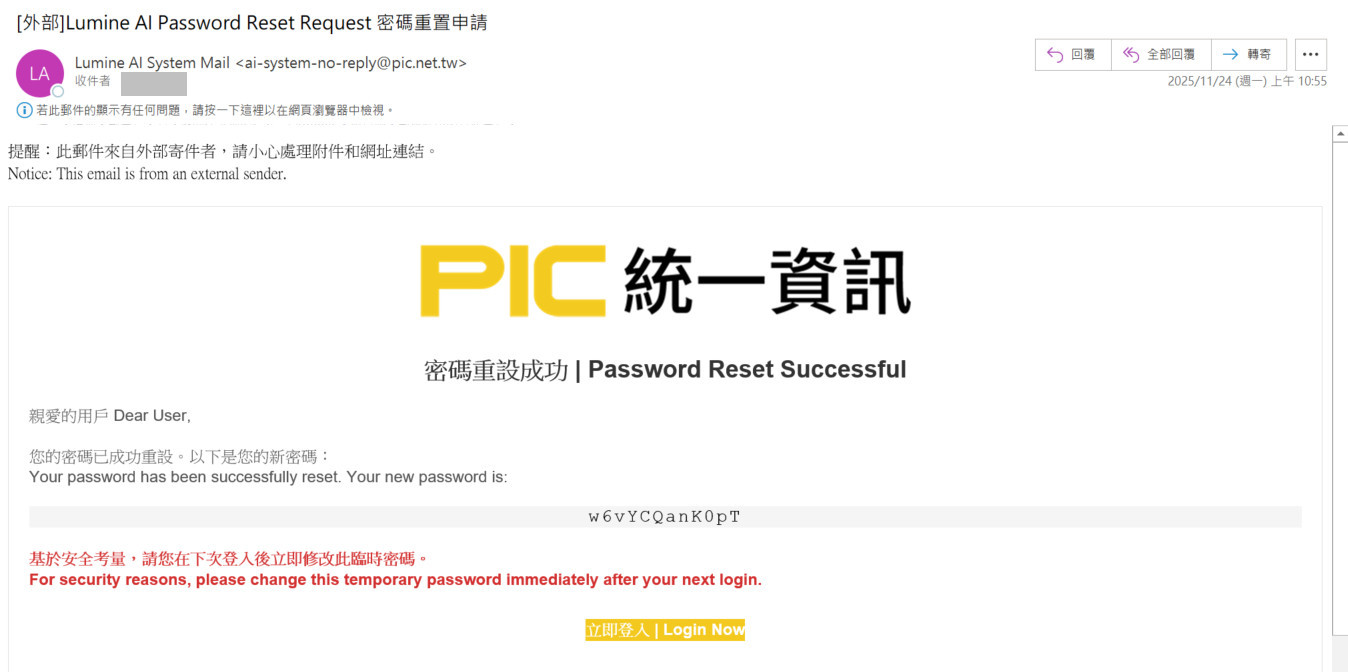
4. 點下連結後,會收到密碼通知信,請使用新密碼登入,進行密碼變更。
You will later receive a second password notification email with a random password. Please use this password to log in and change your new password.