
知識庫管理|Knowledge
A. 知識庫列表|List
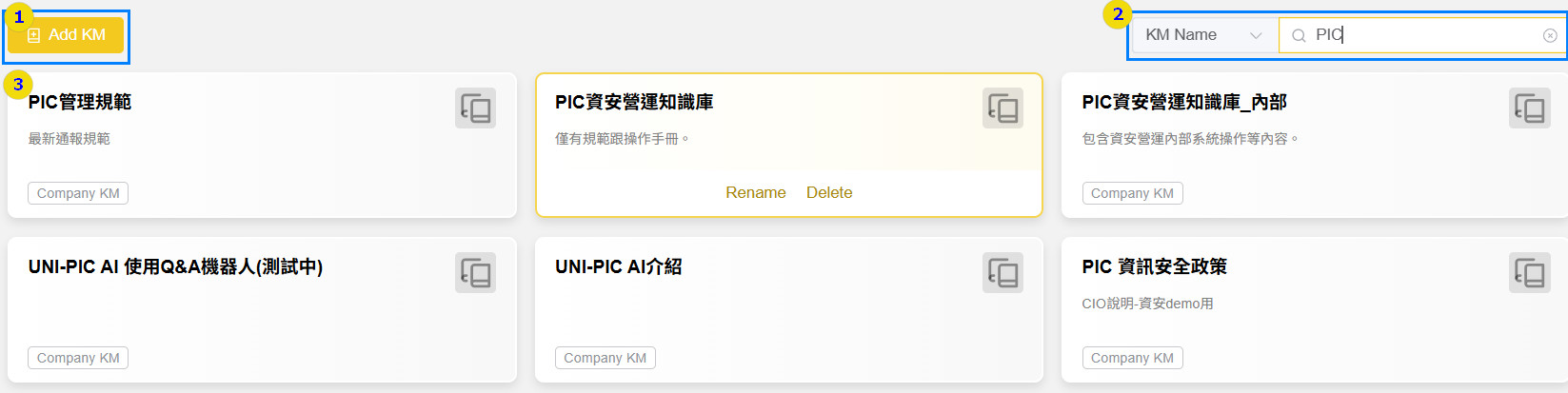
- 新增知識庫:點擊後可執行新增知識庫流程;;
Add KM: Click to execute the add KM process. - 搜尋:針對知識庫名稱進行關鍵字搜尋;
Search Bar: Search for knowledge by using keywords. - 知識庫列表:已存在的知識庫,點擊『編輯』按鈕,可編輯該知識庫;點擊『刪除』按鈕,可刪除該知識庫。
KM List: A list of knowledge bases. Users can edit the name of the knowledge base by clicking the “Edit” button, and delete the base by clicking the “Delete” button.
B. 建立與編輯知識庫|Creating and Editing Knowledge Bases
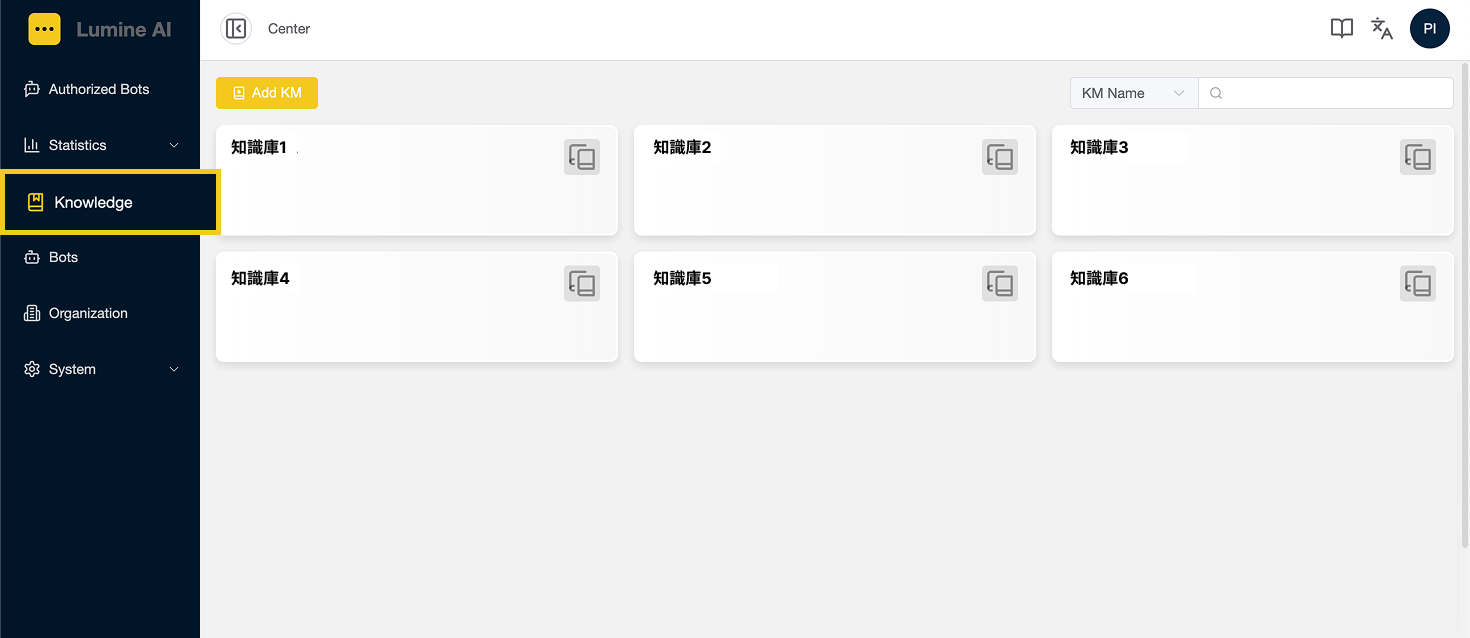
1. 於左側點選『知識庫管理』;
Click the “Knowledge” link in the left side navigation bar to access a list of all the knowledge bases.
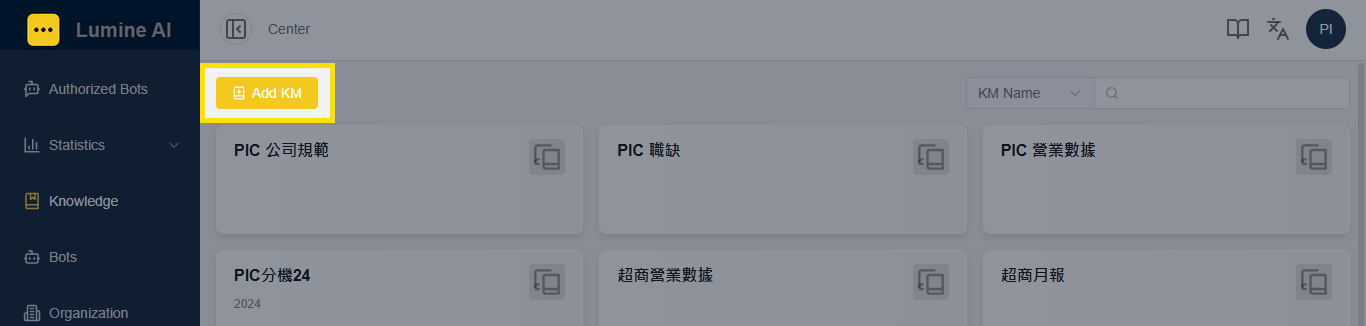
2. 點擊『新增知識庫』按鈕;
Click the “Add KM” button.
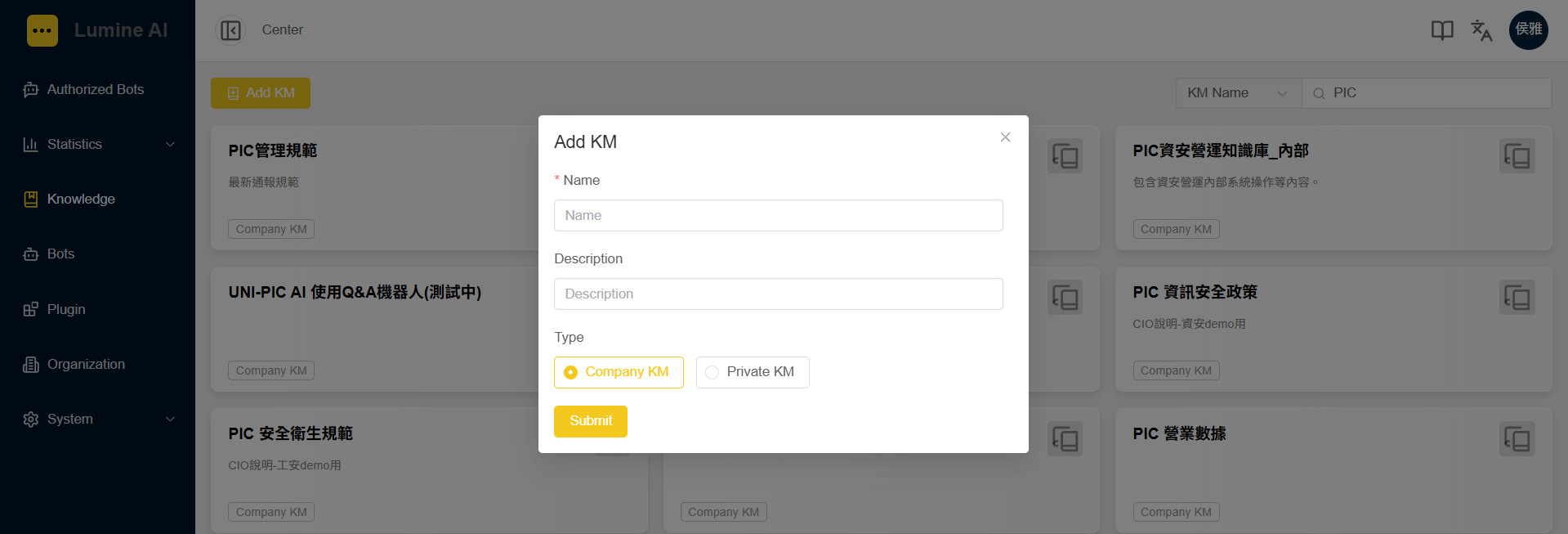
3. 輸入知識庫名稱、描述、類型,點擊『送出』按鈕即完成。
Enter the “Name”, “Description” and “Type”, and then click the “Submit” button.
C. 建立與編輯資料夾|Creating and Editing Knowledge Folders
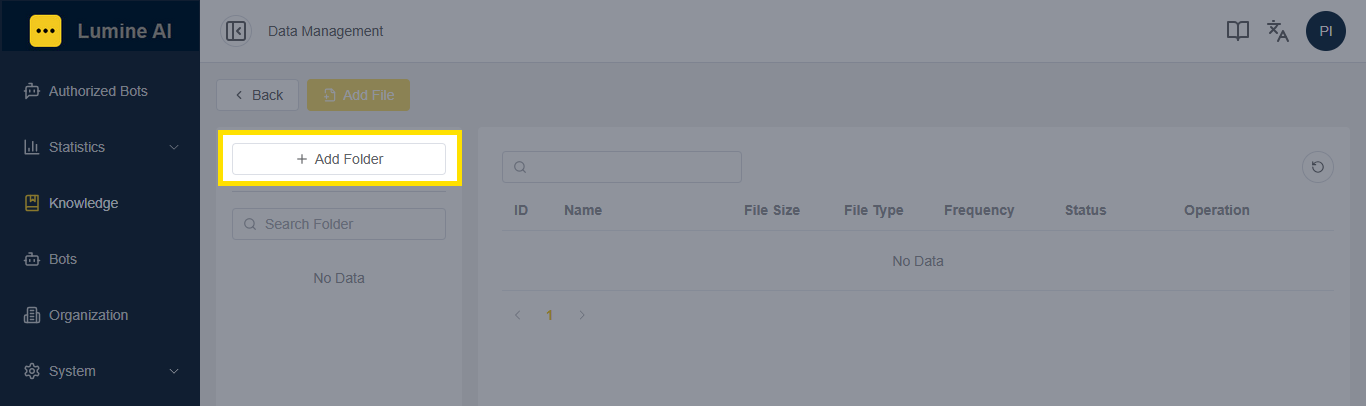
1. 點選已建立的知識庫,進入知識庫資料管理頁面,點擊『新增資料夾』按鈕;
Select a knowledge base from the list. Click the “Add Folder” button.
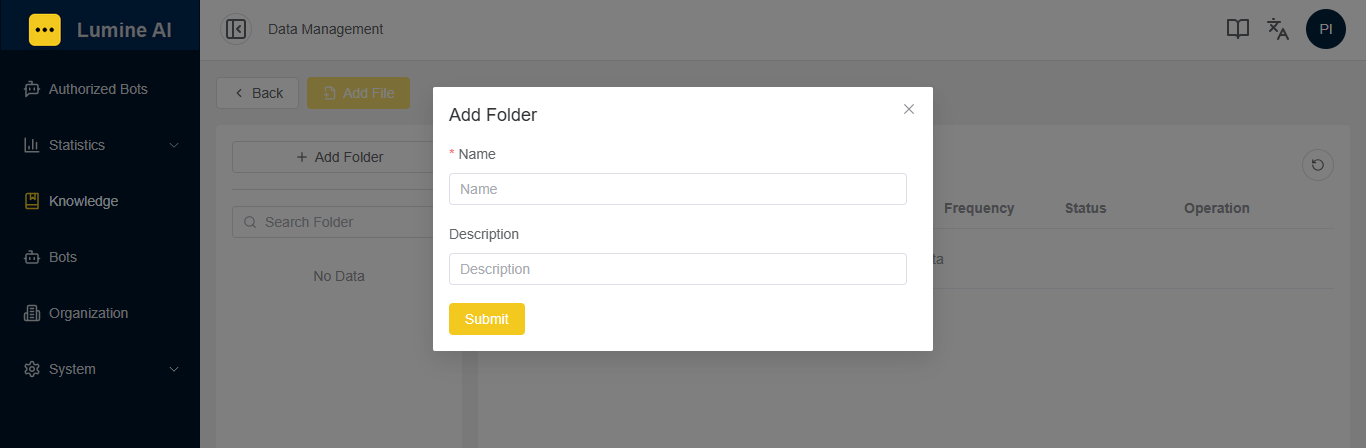
2. 輸入資料夾名稱與描述,點擊『送出』按鈕,完成資料夾建立。
Enter the “Name” and “Description” of the new folder, and then click the “Submit” button.
D. 新增知識檔案|Uploading Knowledge Documents
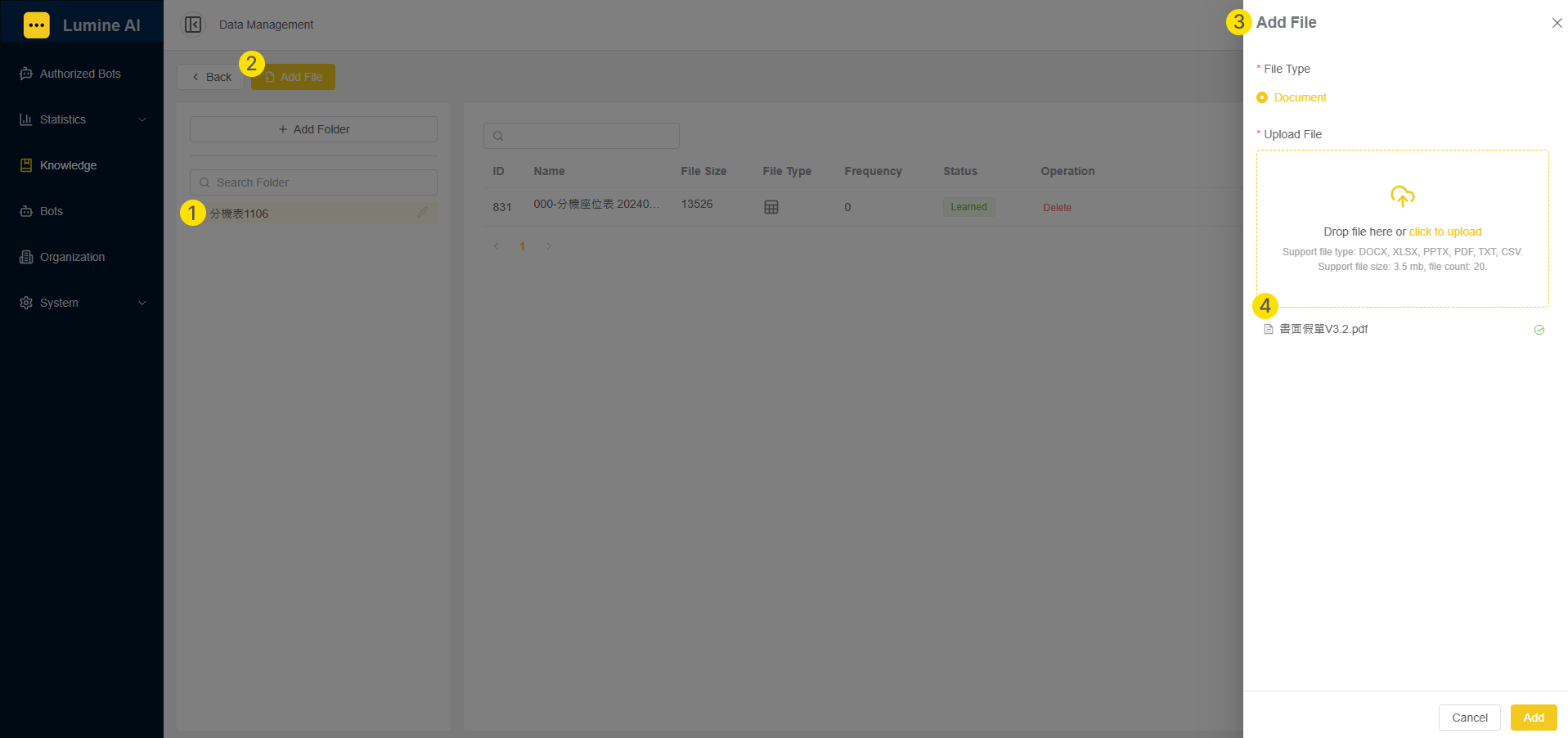
1. 點選①的資料夾,再點擊②『新增檔案』按鈕,右側出現③新增檔案區塊;
Click the folder (Reference 1), and then click the “Add File” button (Reference 2). The “Add File” section (Reference 3) will appear on the right side of the screen.
2. 於新增檔案區塊,上傳一個或多個檔案後,④上傳完成區塊顯示檔案名稱,且若檔案名稱右側出現綠色打勾圖樣,則為上傳成功;
In the “Add File” section, when one or more files are uploaded successfully, their file names will be shown on Reference 4, and a green click icon will be on the right of the corresponding file.
3. 點擊『新增』按鈕,完成KM學習流程;
Then, click “Add” button.
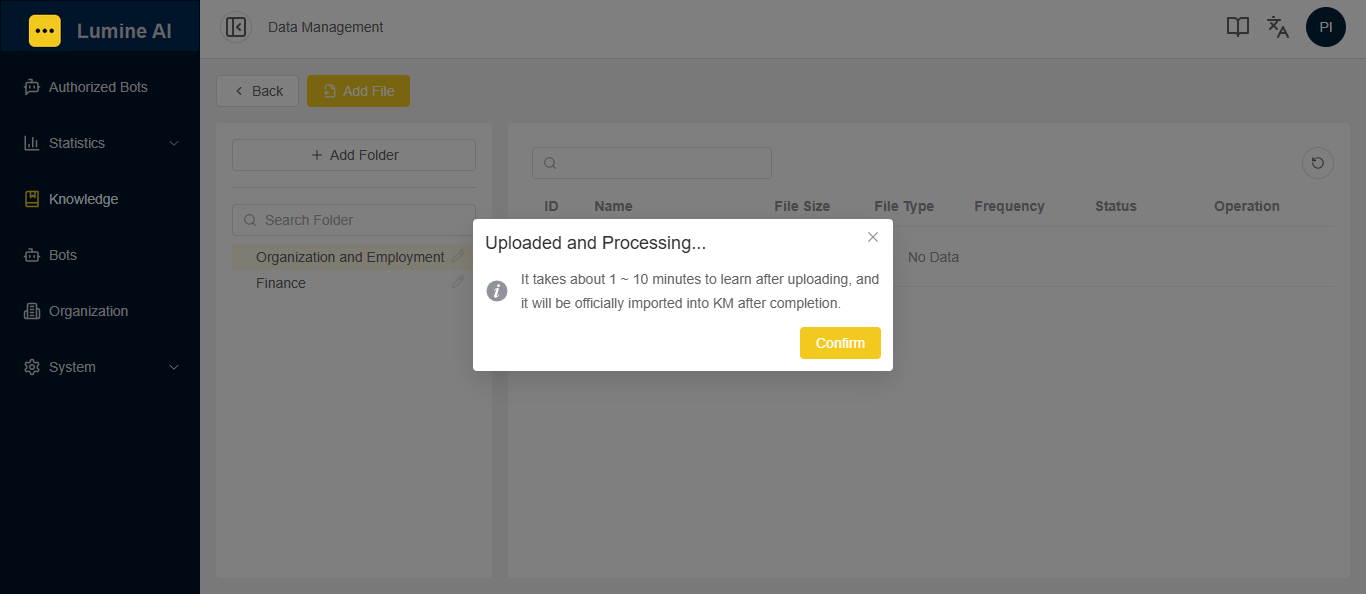
4. 知識檔案上傳完成,點擊『確認』按鈕,並等候 1~10 分鐘即可。
Click the “Confirm” button, and all the files will be imported into Data Management after the learning process is completed in about 1 to 10 minutes.
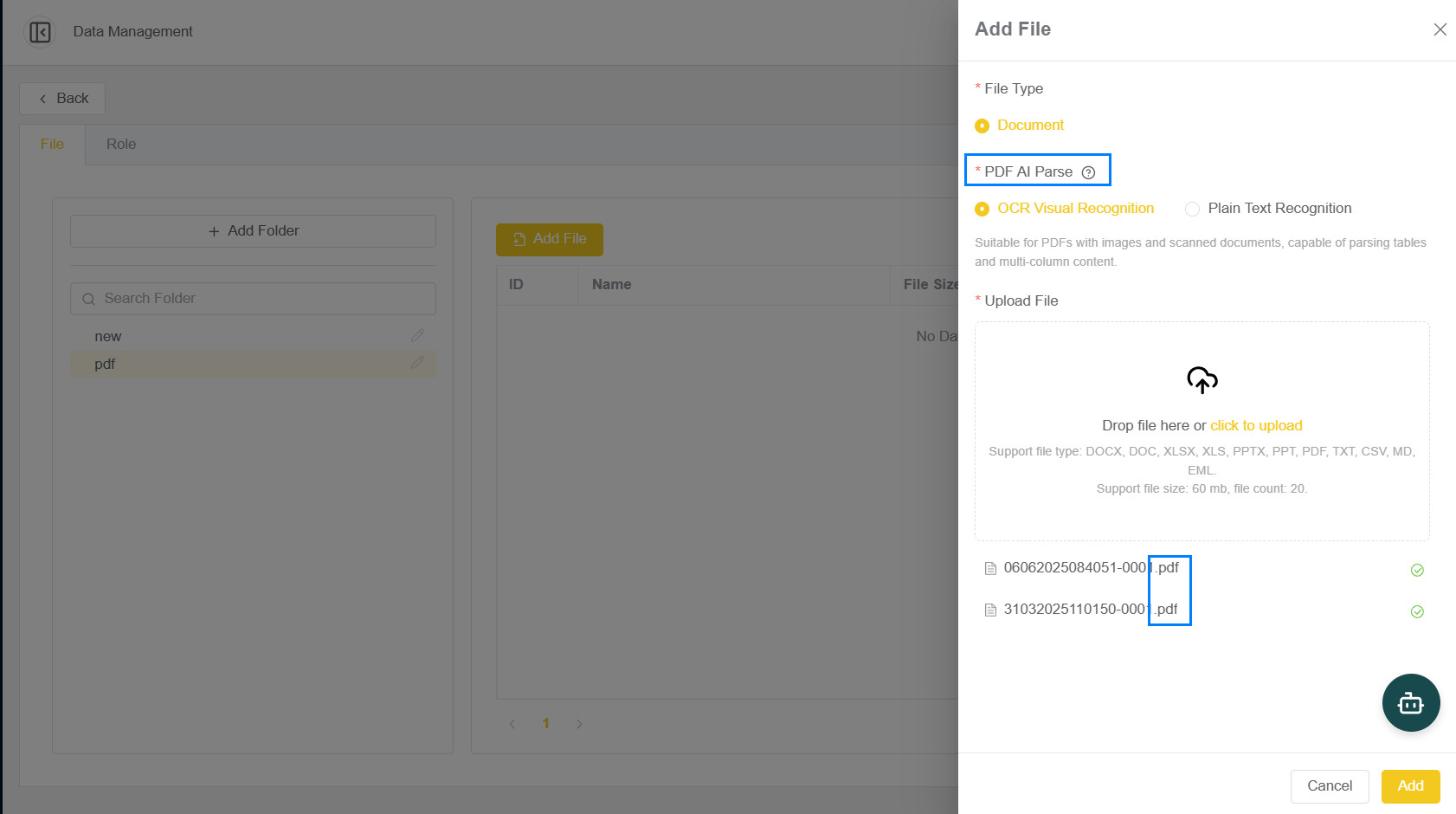
上傳的檔案若包含 PDF 格式,系統將提供 PDF AI 解析 選項:
* OCR 視覺辨識:適用於含圖片或掃描文件的 PDF,可解析表格與多欄內容。
* 純文字辨識:適用於純文字型 PDF,不支援圖片與複雜排版
If the uploaded files include PDF format, the system will provide a PDF AI Parsing option:
* OCR Visual Recognition: Suitable for PDFs with images and scanned documents, capable of parsing tables and multi-column content.
* Plain Text Parsing: Only suitable for text-based PDFs, does not support images and complex layouts.
E. 設定私人知識庫|Managing Private KM
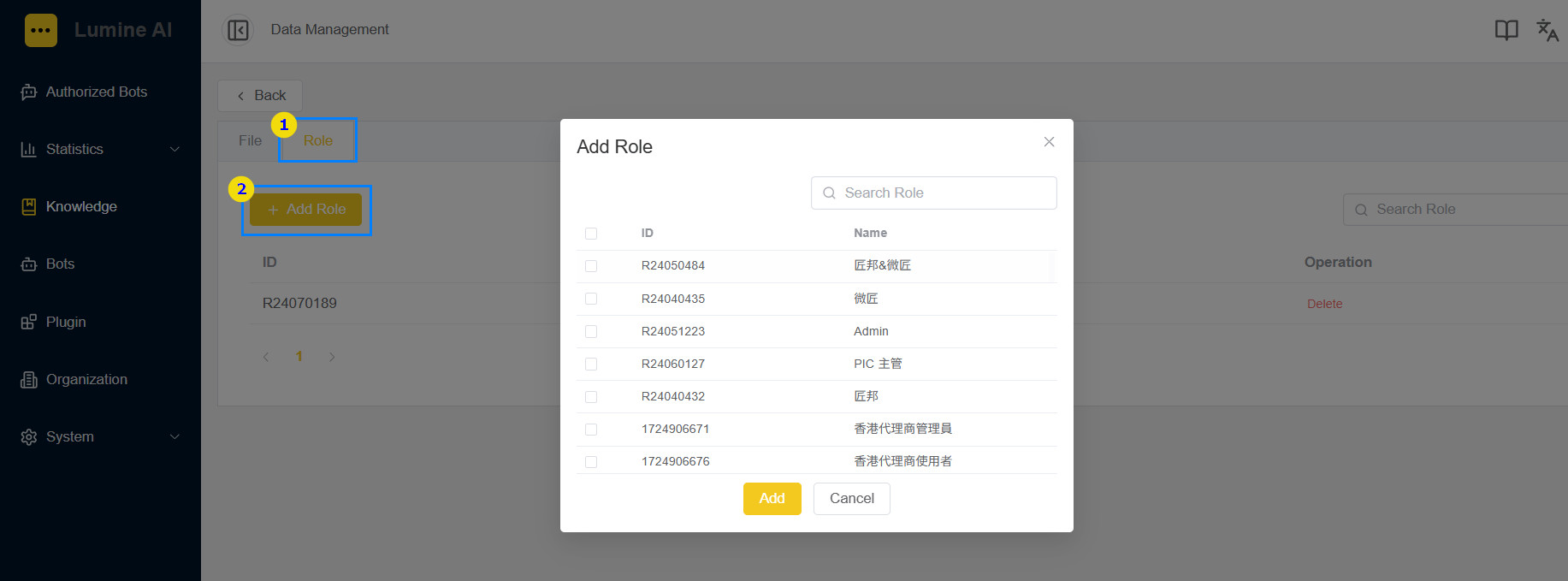
建立知識庫時,若將類型設定為 私人,則必須先設定哪些角色的成員可使用此知識庫。只有屬於這些角色的使用者,才能在機器人設定時指定並使用該知識庫。
設定步驟如下:點選①角色分頁。 點擊②新增角色,設定可使用該知識庫的角色。
When creating a KM and setting its type to Private, you must first configure which roles’ members are allowed to use it. Only users assigned to these roles will be able to select and use the KM during bot configuration.
To configure this: Click the Roles tab (Reference 1). Click Add Role to define the roles (Reference 2) that are permitted to access the KM.