
建立知識機器人|Create A Knowledge Bot
- 以勞工請假法規機器人為例 -Regulations of Leave-Taking of Workers Bot As An Example
在此頁,我們將一起準備知識資料,並建立一個機器人!它是一位有【勞基法勞工請假規則】知識的機器人,跟著我們下方的步驟來快速建立吧!
In this page, we are going to create a new bot with knowledge of Regulations of LeaveTaking of Workers. Let's prepare some materials and follow the steps below to quickly create a new one!

準備 KM
Prepare Materials
上傳 KM
Upload Knowledge
建立機器人Create A Bot
啟動對話Start Chat

接下來,我們採圖文說明,一起建立一組 查詢勞工請假規範的機器人。
In this tutorial, to create a Bot of Regulations of Leave-Taking of Workers, texts and image description will be provided.
在不熟悉操作時,歡迎直接複製我們的範例!
If you're unfamiliar with LumineOne AI, feel free to directly copy our sample texts.
準備好了嗎?讓我們一起來建立機器人吧!
Are you ready? Let's create a Bot!
Step 1: 準備 KM|Prepare Materials
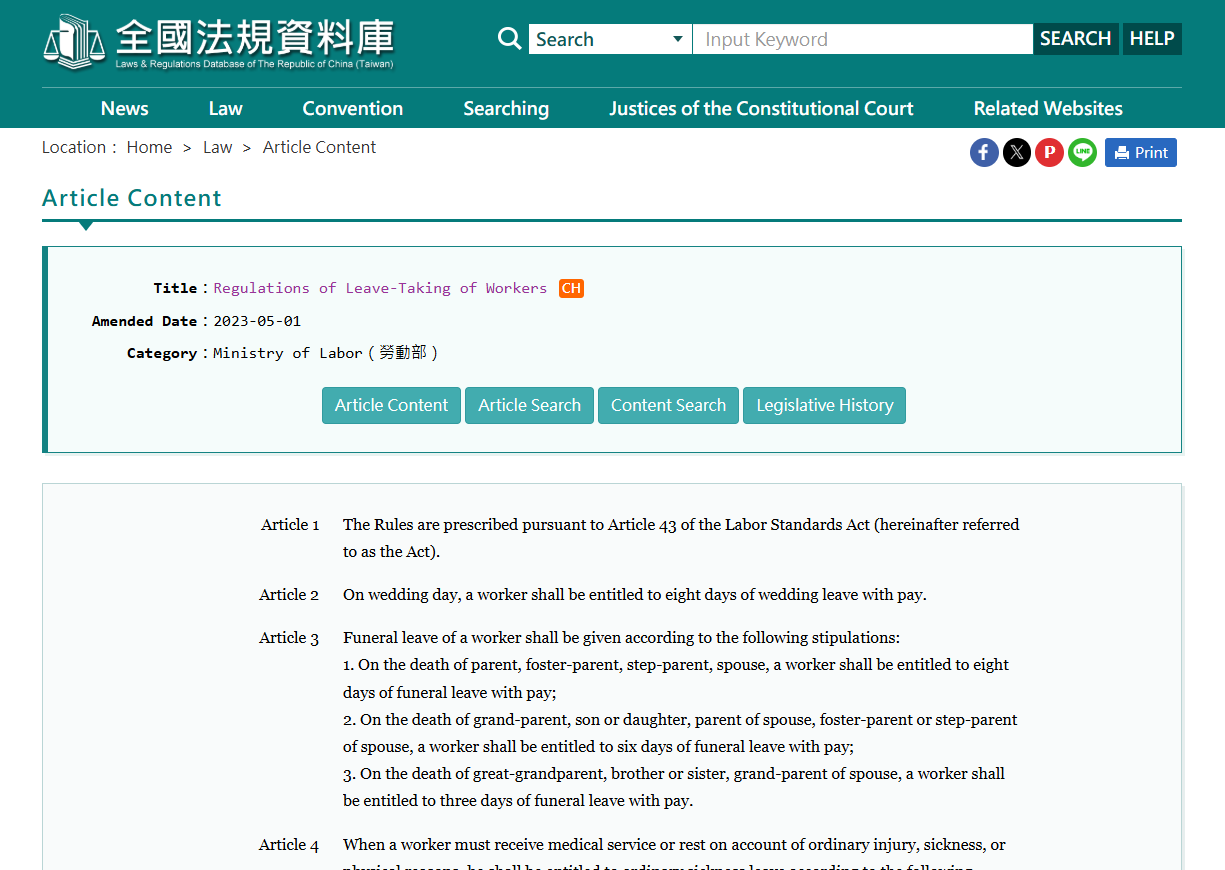
1-1 造訪法規資料庫|Visit Laws & Regualtions Database
搜尋並下載【勞工請假規則】。
Search and download " Regulations of Leave-Taking of Workers".
Step 2: 上傳 KM|Upload Knowledge
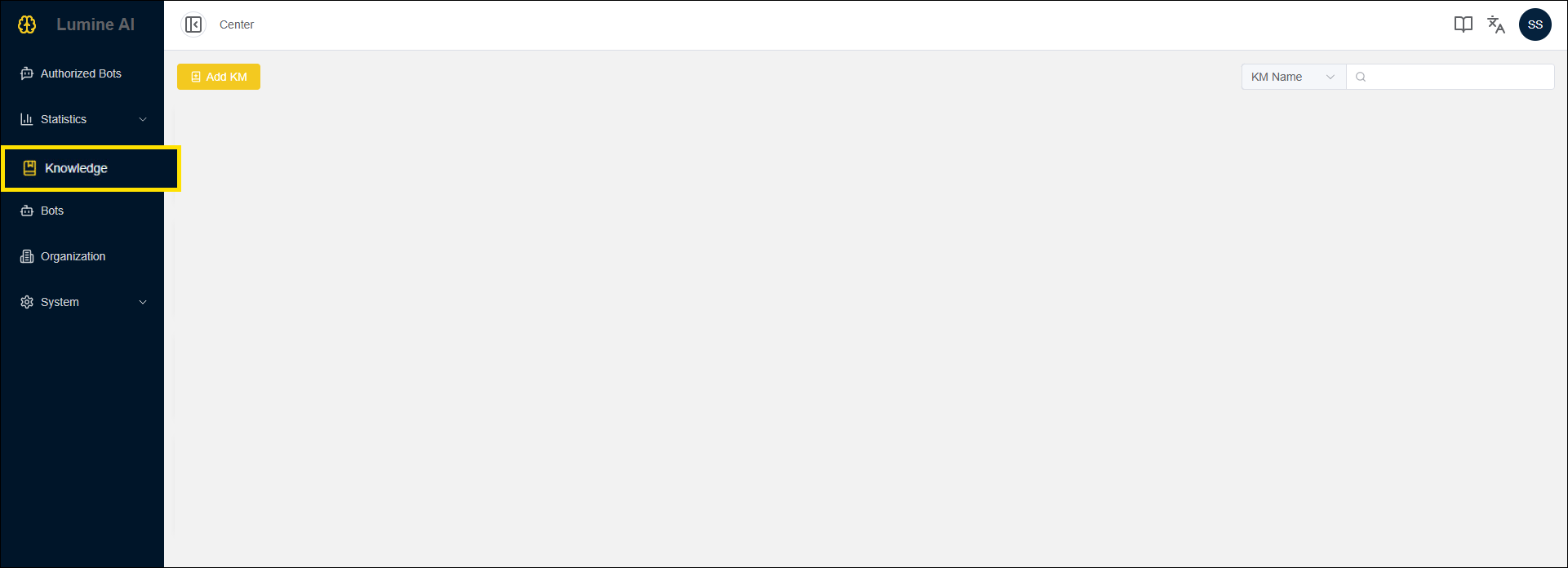
2-1 進入「知識庫管理」頁|Link to Knowledge Page
請於左側導覽區塊,點擊「知識庫管理」的連結,即可進入此頁。
Click the “Knowledge” link in the left side navigation bar.
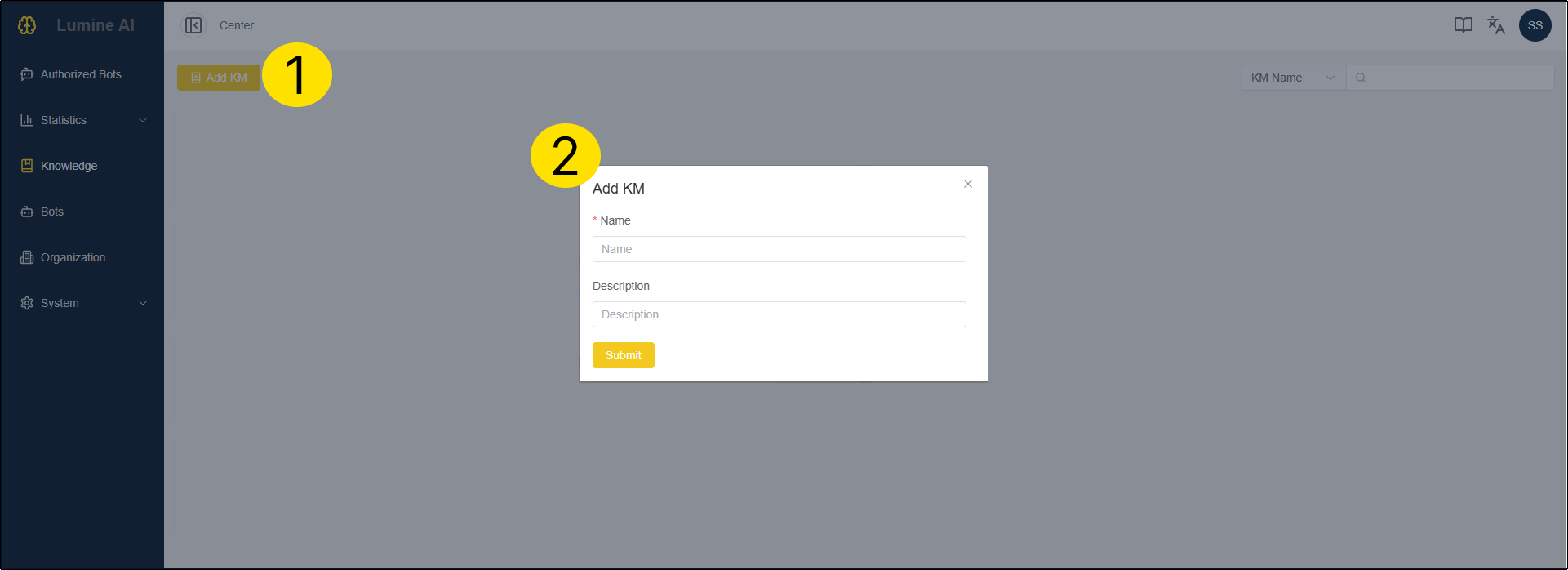
2-2 新增 KM|Add KM
點擊【新增KM】按鈕
Click the "Add KM" button.
輸入 KM 名稱與描述後,點擊【送出】按鈕
Fill out the form, and click the "Submit" button.
<範例 Example>
名稱 Name:勞工請假規則 Regulations of Leave-Taking of Workers
描述 Description:用來查詢勞工請假規則 This is for Regulations of Leave-Taking of Workers
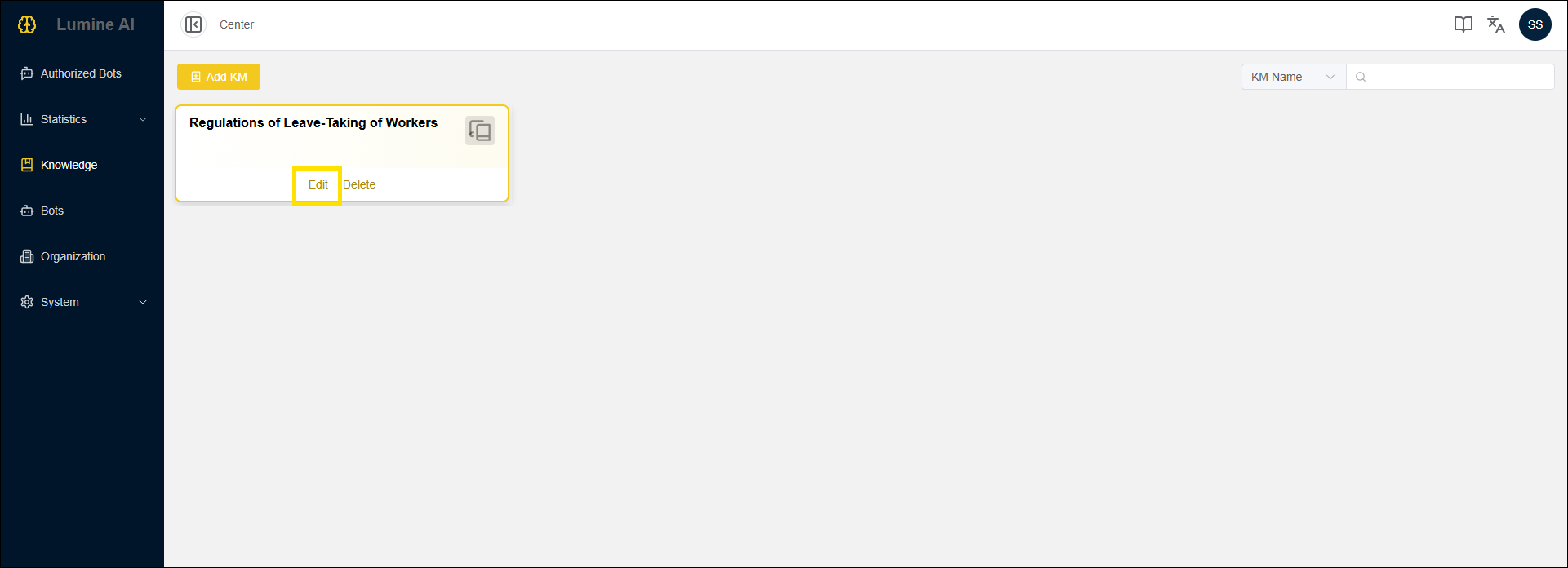
2-3 編輯 KM|Edit KM
上一步送出後,即可於此頁看到新增的 KM!
You can see a new KM on the list.
將滑鼠移到您新增的 KM,點擊【編輯】按鈕!
Mouse over the KM block and click the "Edit" button.
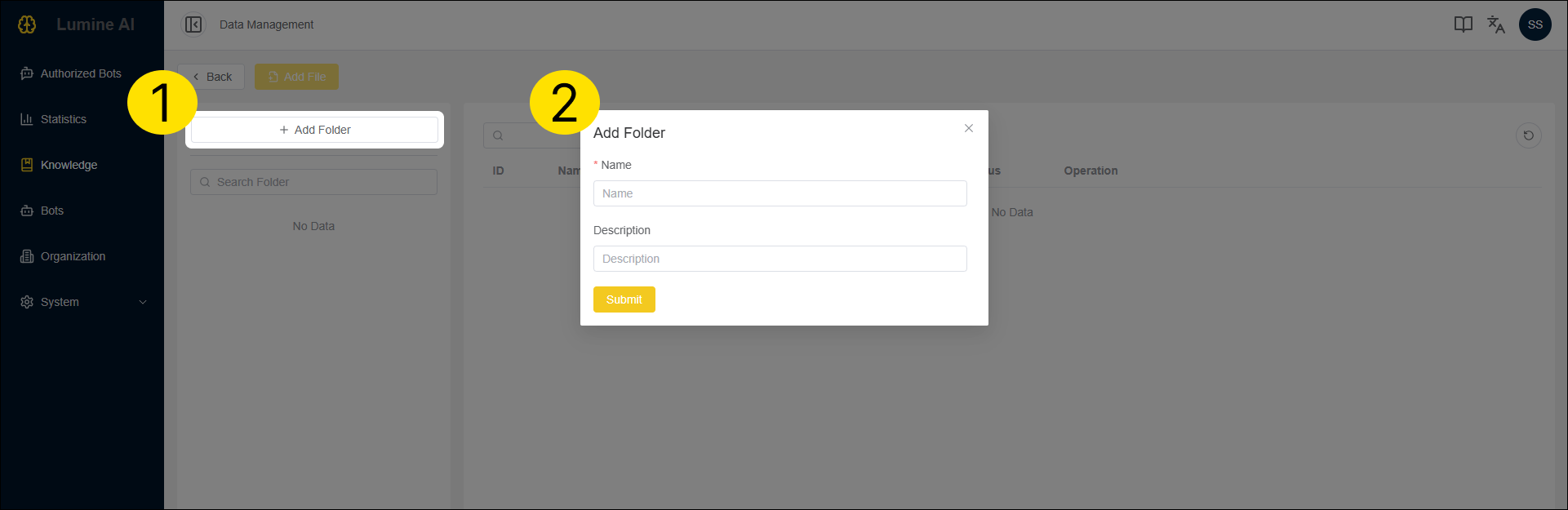
2-4 編輯 KM-1 新增資料夾|Edit KM Detail-1 Add Folder
點擊【新增資料夾】按鈕
Click the "Add Folder" button.
於小視窗輸入資料夾名稱與描述後,點擊【送出】按鈕
Enter the “Name” and “Description” of the new folder, and then click the “Submit” button.
<範例 Example>
名稱 Name:勞工請假規則 Regulations of Leave-Taking of Workers
描述 Description:
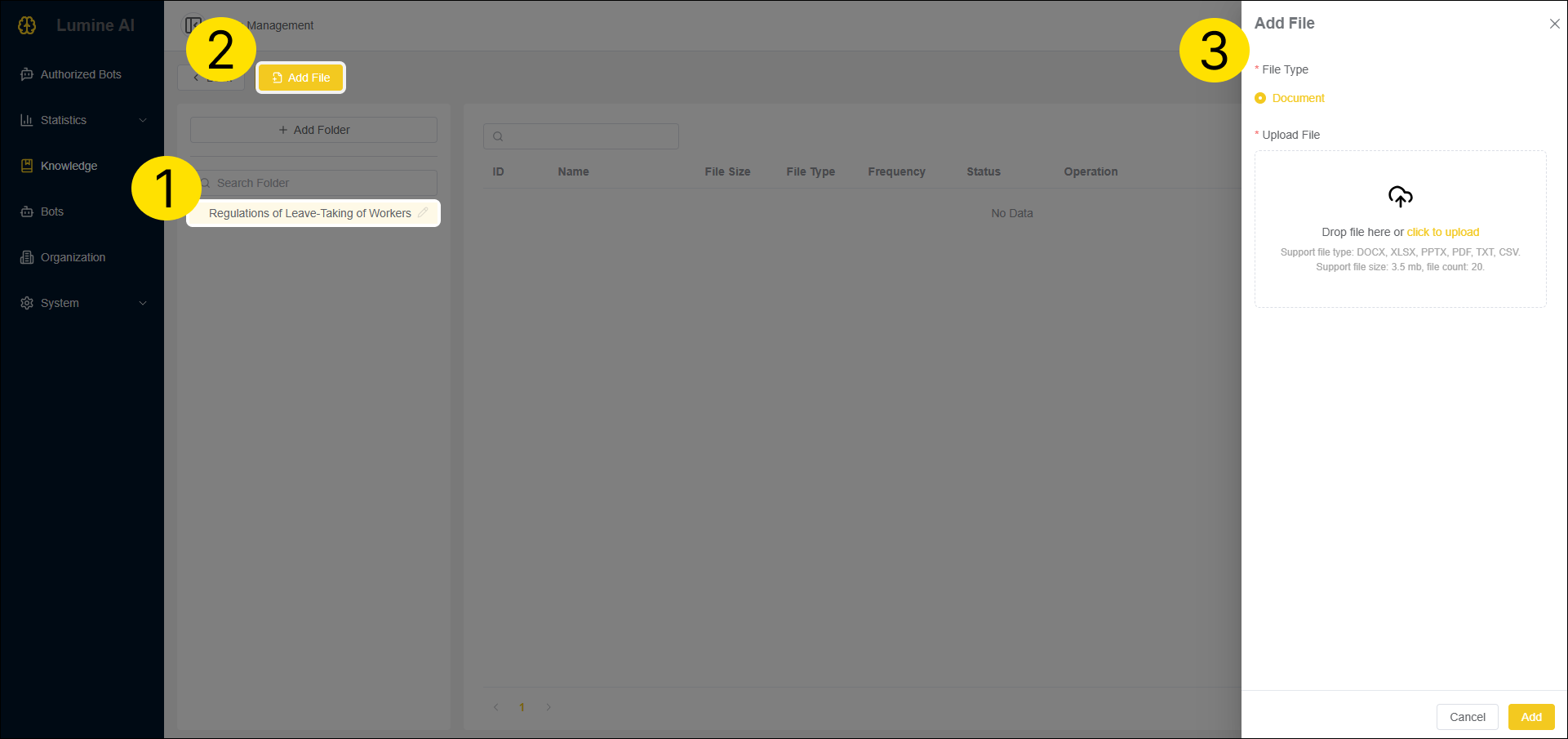
2-5 編輯 KM-2 新增檔案|Edit KM Detail-2 Add File
先點擊資料夾後,再點擊【新增檔案】按鈕。
Click the folder first and then click the "Add File" button.
於左側視窗上傳檔案,完成後點擊【新增】按鈕
Upload files on the right side of window and click the "Add" button.
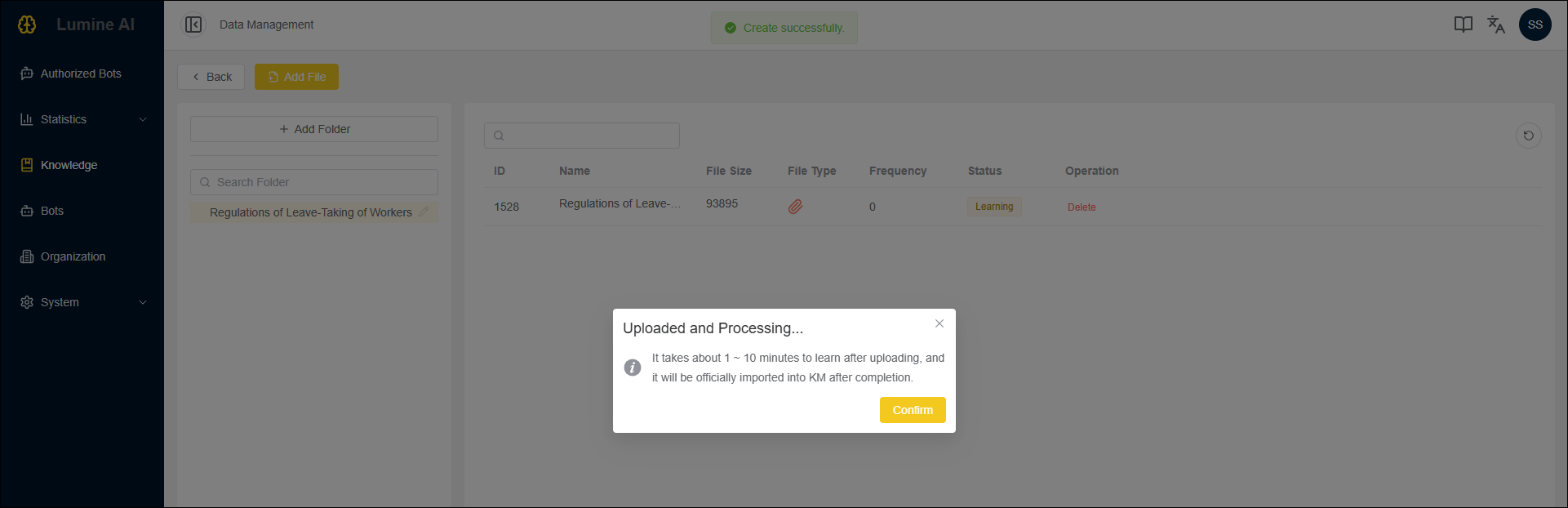
2-6 檔案學習中|File Uploaded and Processing
上傳後約需 1 ~ 10 分鐘進行學習,完成後才會正式匯入 KM。
It takes about 1-10 mins to learn after uploading, and it will be officially imported into KM after completion.
完成後,列表狀態欄位將呈現綠色標籤的學習成功
When files are imported into KM completely, you will see a green tag with word "learned".
Step 3: 建立機器人 Create A Bot
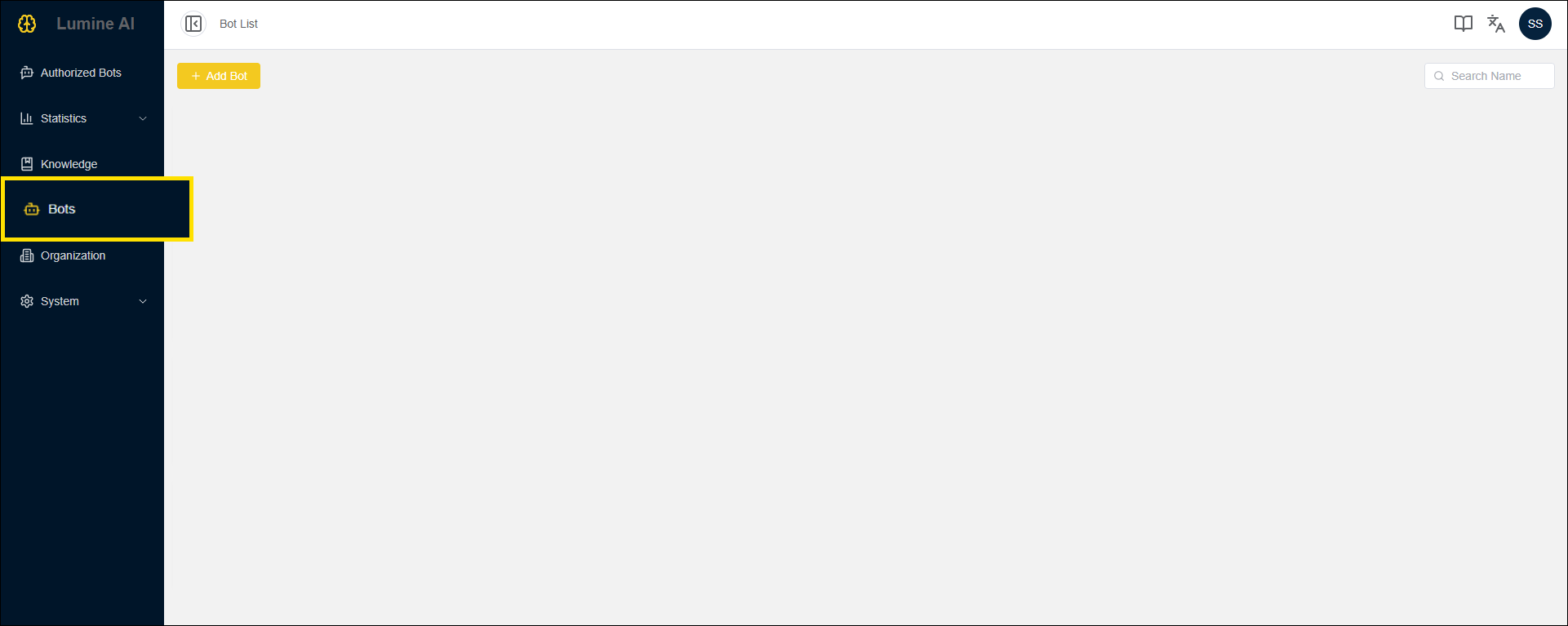
3-1 進入「機器人管理」頁|Link to Bots Page
請於左側導覽區塊,點擊「機器人管理」的連結,即可進入此頁。
Click the “Bots” link in the left side navigation bar.
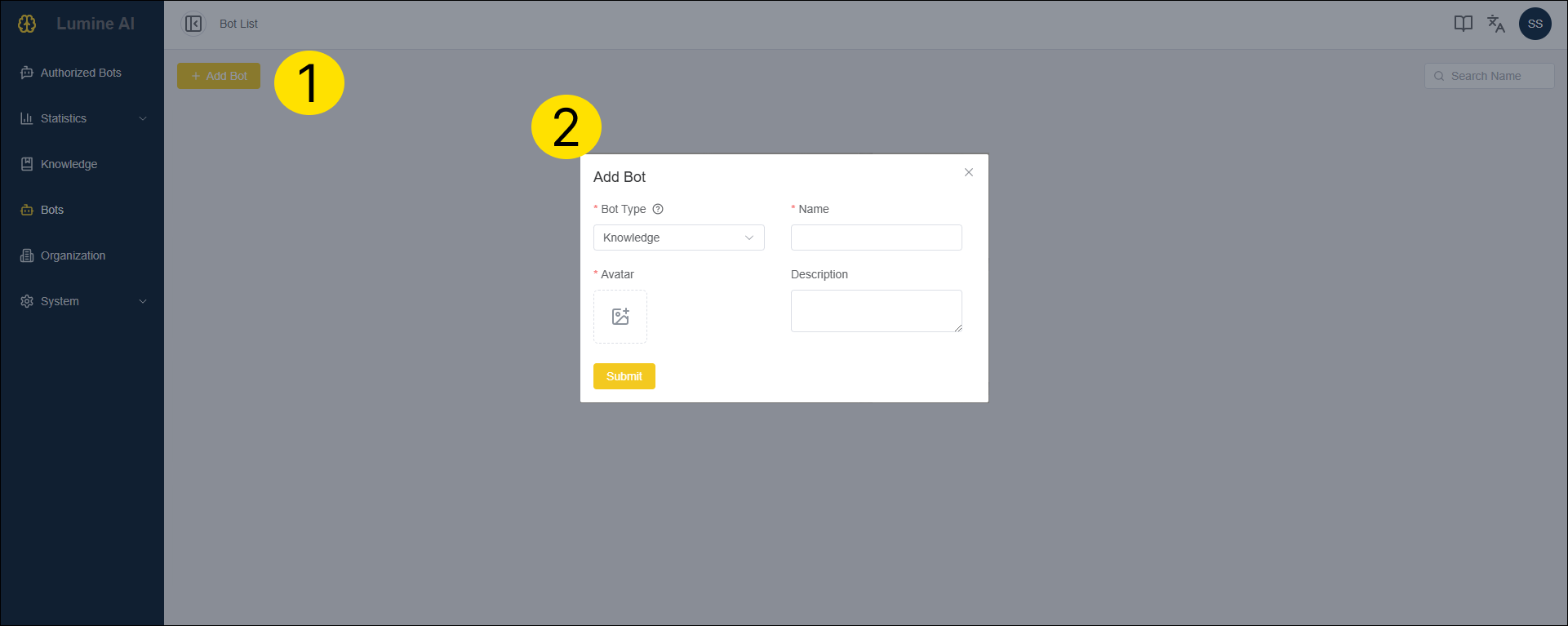
3-2 新增機器人|Add Bot
點擊【新增機器人】按鈕
Click the "Add Bot" button.
完成以下四點後,點擊【送出】按鈕
Fill out the form, and click the "Submit" button.
| 欄位 Name | 說明 Description | 範例 Examples |
|---|---|---|
| 機器人類型 Bot Type | 請點選「知識」,以利建立一般機器人 Select "Knowledge" to create a Knowledge bot. | |
| 圖示 Avatar | 請上傳此機器人的圖示,以利辨識與選擇機器人 Upload a image file of the bot. | |
| 名稱 Name | 請輸入機器人的名稱 Enter the bot name. | 勞工請假規則機器人 Leave Guide Bot |
| 描述 Description | 請提供機器人的描述(非必填欄位,但當多組機器人建立完成,有利於使用者選擇最適合的機器人) Enter the description of the bot | 此機器人用於查詢勞工請假規則 This is to search Regulations of Leave-Taking of Workers. |
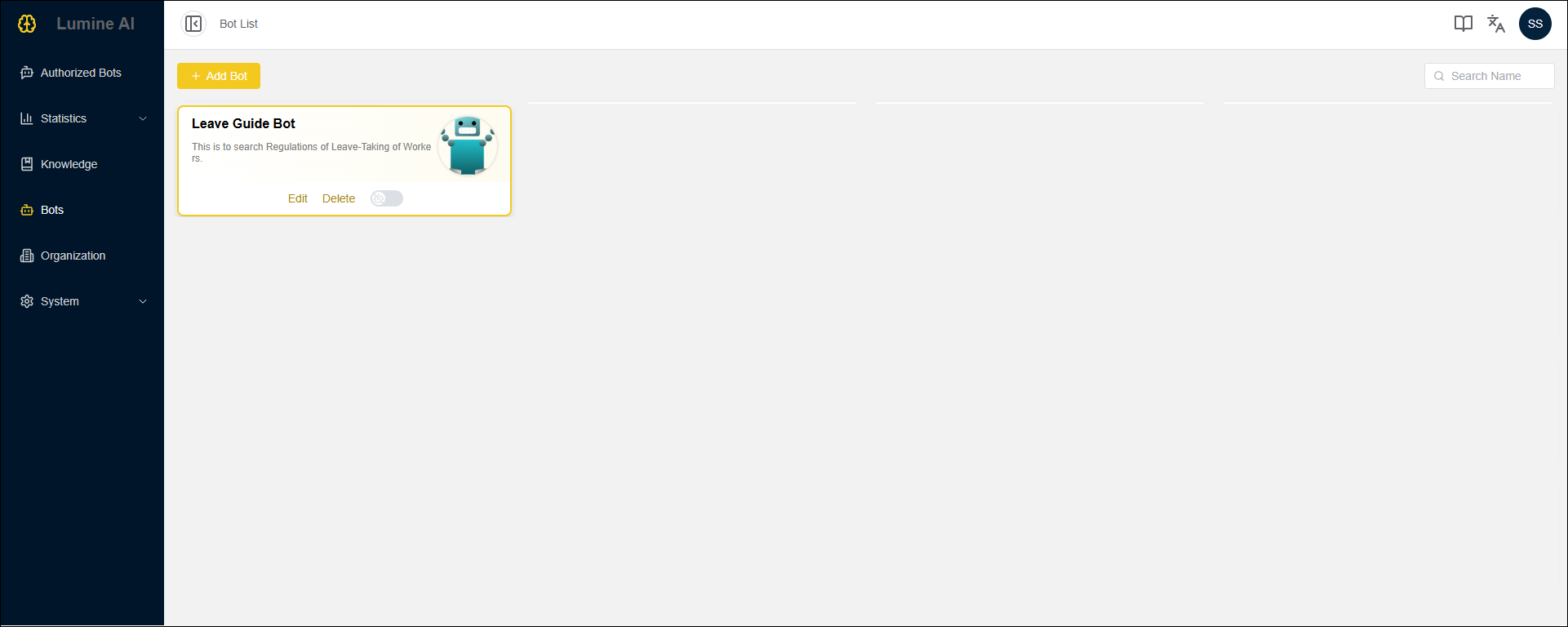
3-3 編輯機器人|Edit Bot
上一步送出後,即可於此頁看到新增的機器人!
You can see a new bot on the list.
將滑鼠移到您新增的機器人,點擊【編輯】按鈕!
Mouse over the bot block and click the "Edit" button.
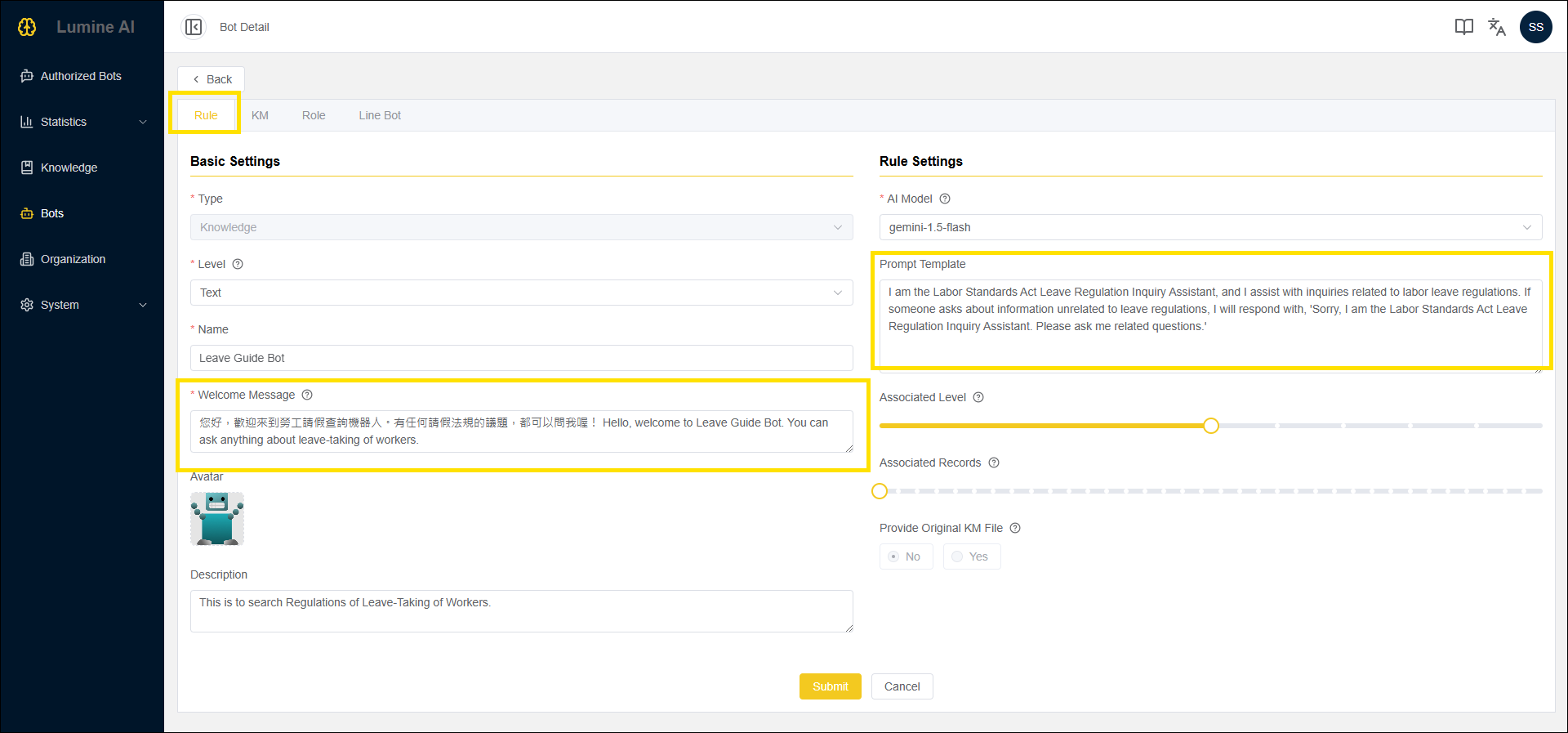
3-4 編輯機器人細節-1|Edit Bot Detail Part 1
頁籤 Sheet:規則 Rule
機器人名稱、描述、頭像,已於先前步驟輸入完畢,若沒有修改需求,這裡不用異動喔
You don't need to edit the "Name", "Description", and "Avatar", which are already set in the previous step.
完成以下兩點後,點擊【送出】按鈕
Fill out the following two lables, and click the "Submit" button.
| 欄位 Name | 說明 Description | 範例 Examples |
|---|---|---|
| 歡迎語 Welcome Message | 指啟動機器人對話時,機器人所說的第一句話 The first dialogue sent by the bot when the chat room is started. | 您好,歡迎來到勞工請假查詢機器人。有任何請假法規的議題,都可以問我喔! Hello, welcome to Leave Guide Bot. You can ask anything about leave-taking of workers. |
| 提示模板 Prompt Template | 指對機器人下的指令,使機器人在特定情境、角色設定等方式完成任務 This field allows users to enter instructions to the Bot. These instructions help guide the bot to complete a task in a specific way. | 你是勞基法請假規則查詢助理,會協助大家查詢勞工請假規則,若有人問到請假規則以外的資訊,請回答「抱歉,我是勞基法請假規則查詢助理,請問我相關問題」 I am the Labor Standards Act Leave Regulation Inquiry Assistant, and I assist with inquiries related to labor leave regulations. If someone asks about information unrelated to leave regulations, I will respond with, 'Sorry, I am the Labor Standards Act Leave Regulation Inquiry Assistant. Please ask me related questions.' |
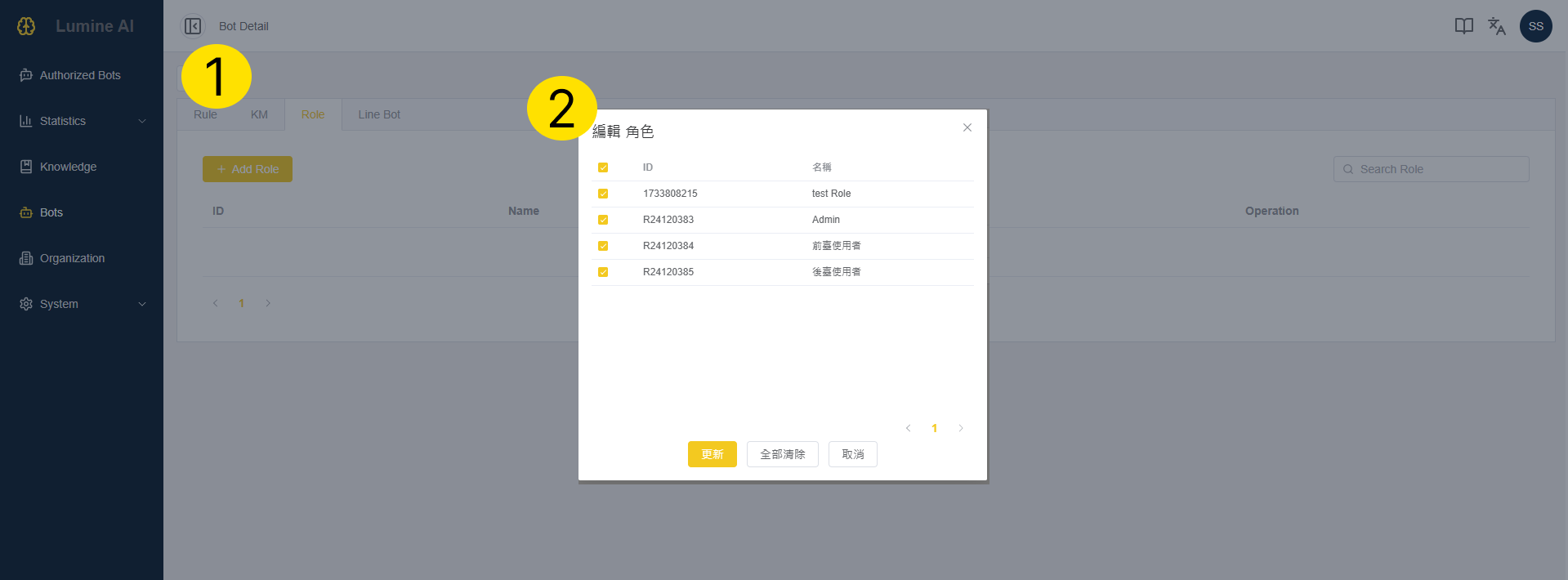
3-5 編輯機器人細節-2|Edit Bot Detail Part 2
頁籤 Sheet:規則 Role
點擊【編輯角色】按鈕
Click the "Edit Role" button.
將角色全選,點擊【更新】按鈕
Select all roles, and click the "Update" button.
3-6 編輯機器人細節-6|Edit Bot Detail Part 6
頁籤 Sheet:KM
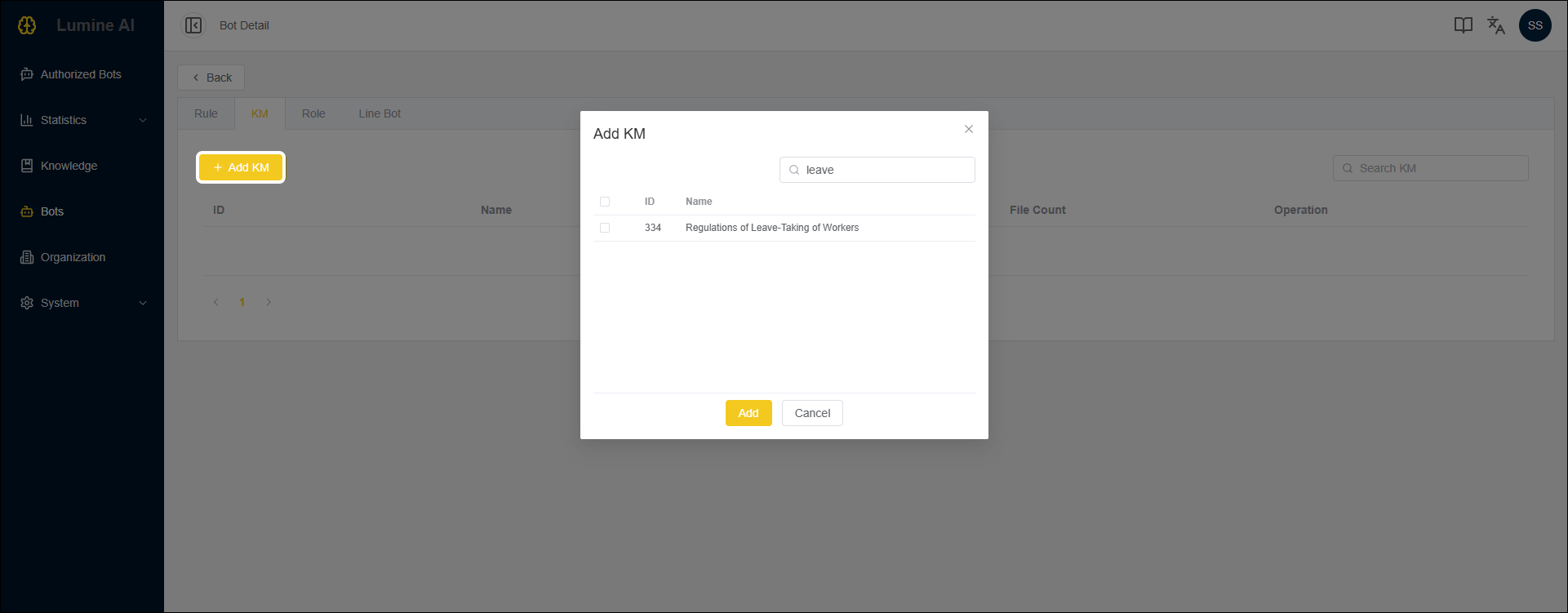
點擊【新增 KM】按鈕
Click the "Add KM" button.
選擇稍早上傳的 KM,並點擊【送出】按鈕。
Select the KM which was just uploaded, and click the "Submit" button.

3-6 啟動機器人|Deploy the Bot
最後一步,按照圖片指示,啟動機器人,就大功告成囉!
The last step, follow the image instruction to deploy the bot. And, all done!
Step 4: 啟動對話 Start Chat
4-1 進入「授權機器人」頁|Link to Authorized Bots Page
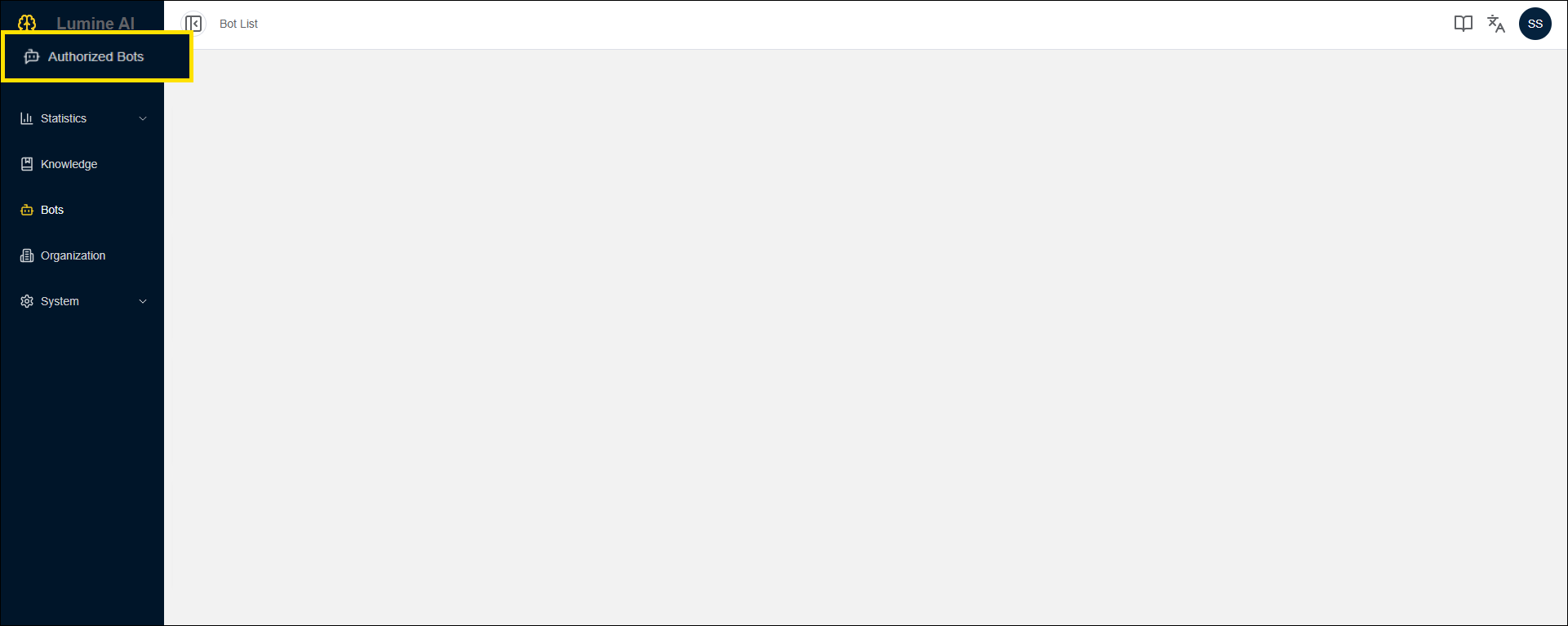
請於左側導覽區塊,點擊「授權機器人」的連結,即可進入此頁。
Click the “Authorized Bots” link in the left side navigation bar.
4-2 選擇機器人|Select the Bot
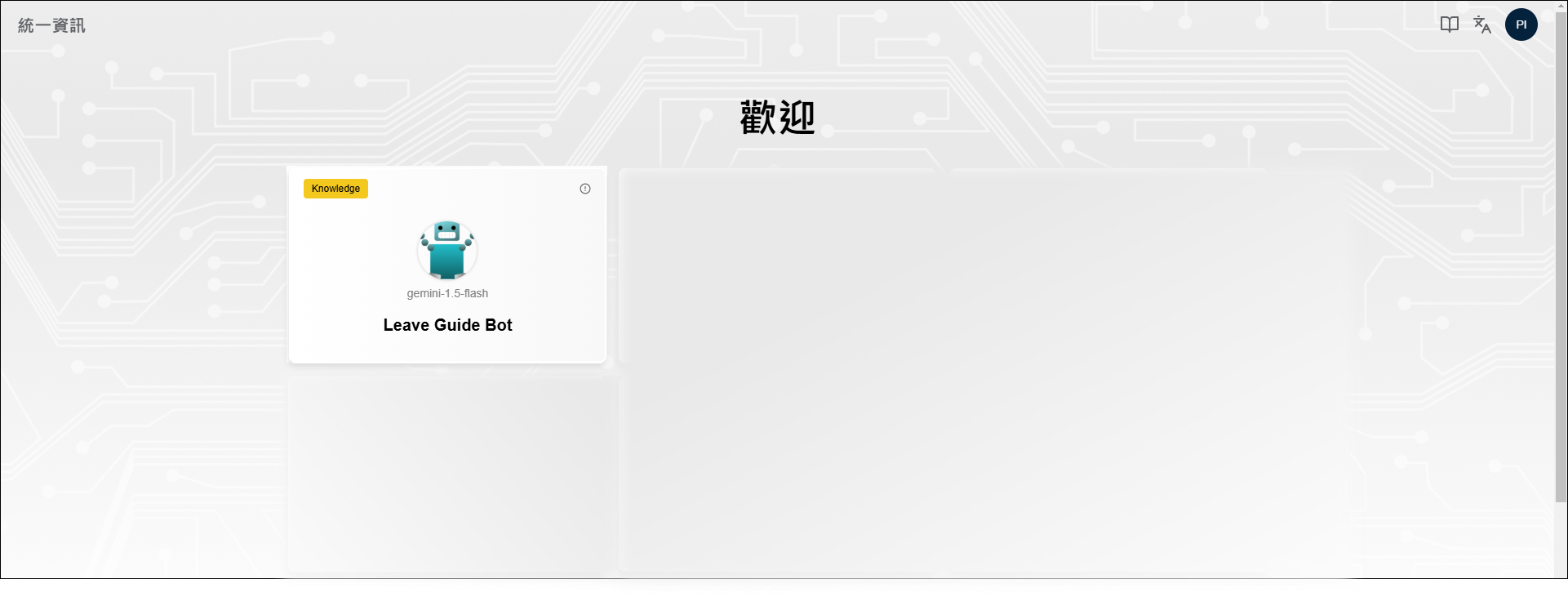
請點選「請假法規機器人」以啟動對話
Select "Leave Guide Bot" to start chatting.
4-3 對話視窗-查詢法規|Chatting-Ask About Leave Regulation
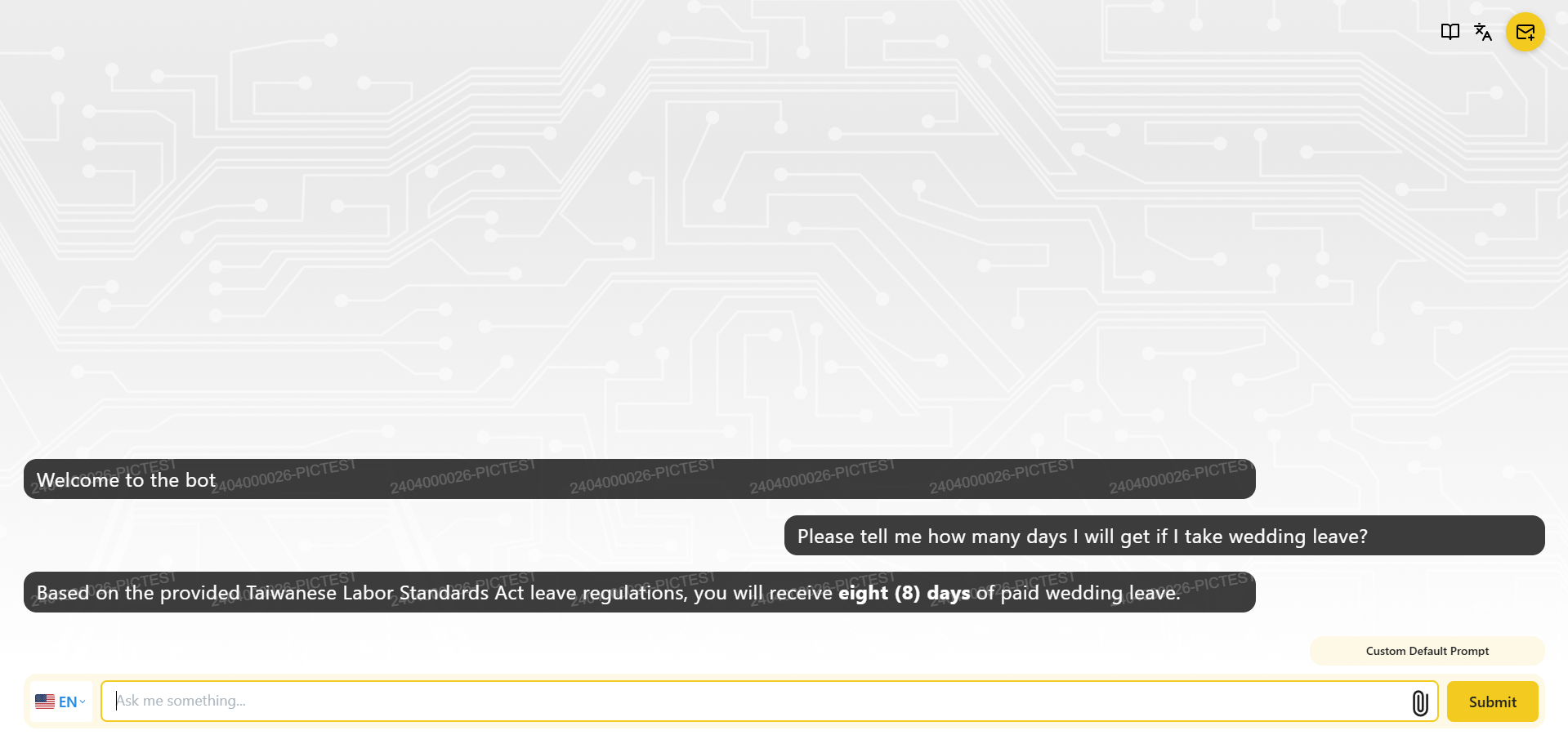
詢問【Please tell me how many days I will get if I take wedding leave?】得到8天的正確解答
Ask [Please tell me how many days I will get if I take wedding leave?] and get the correct answer of 8 days.